How to Create a Registration Flow for a Webinar in Zuddl
Last updated: October 14, 2025
Flow builder allows you to tailor your registration style for your webinar, enabling you to customize each registration step based on your business needs.
Editing the flow
In the form section, you can add or edit fields on the registration form
Log in to your Zuddl dashboard and open your webinar
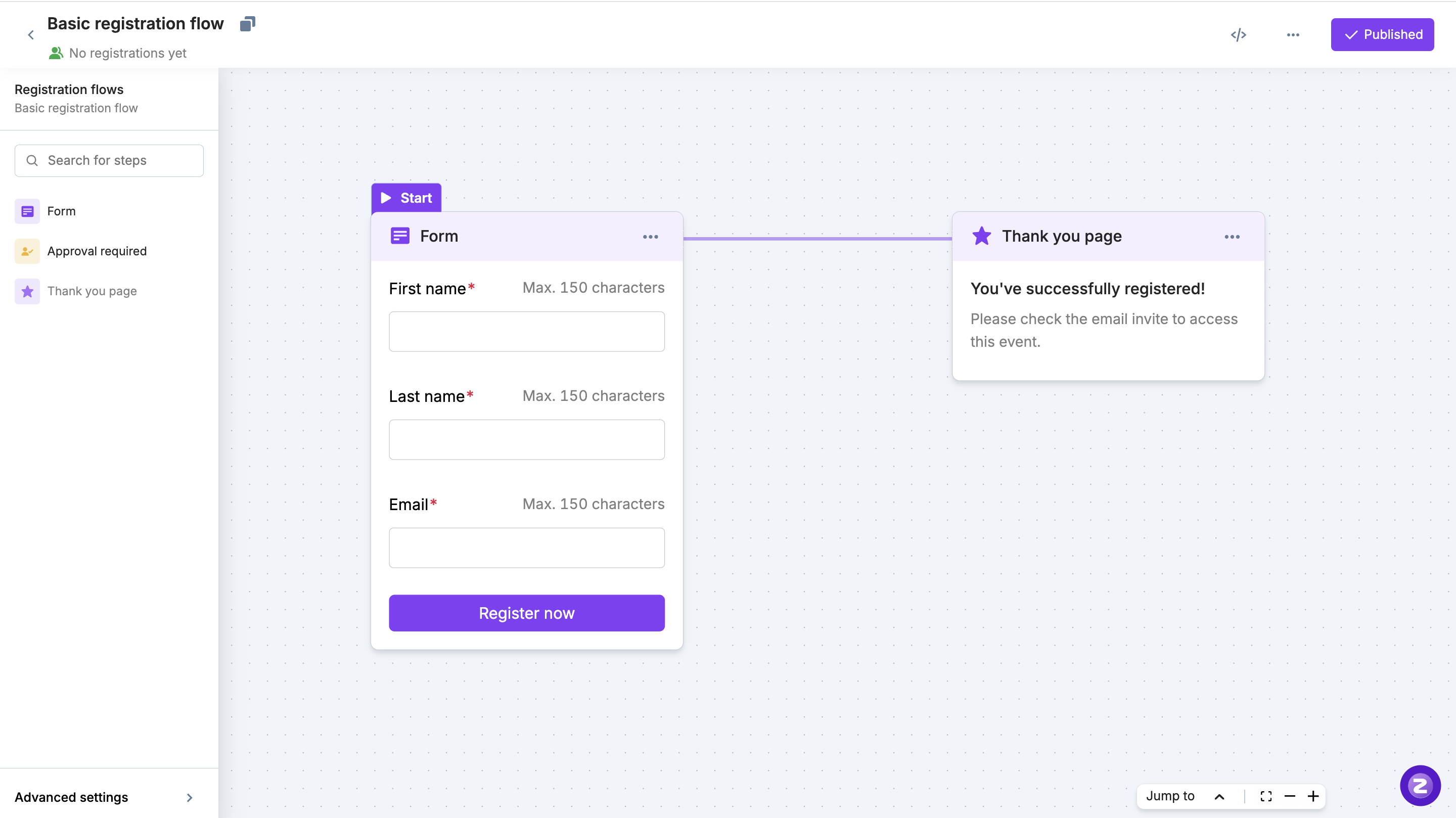
Navigate to Registration > Registration Flow. This opens the flow builder page.
Create a form
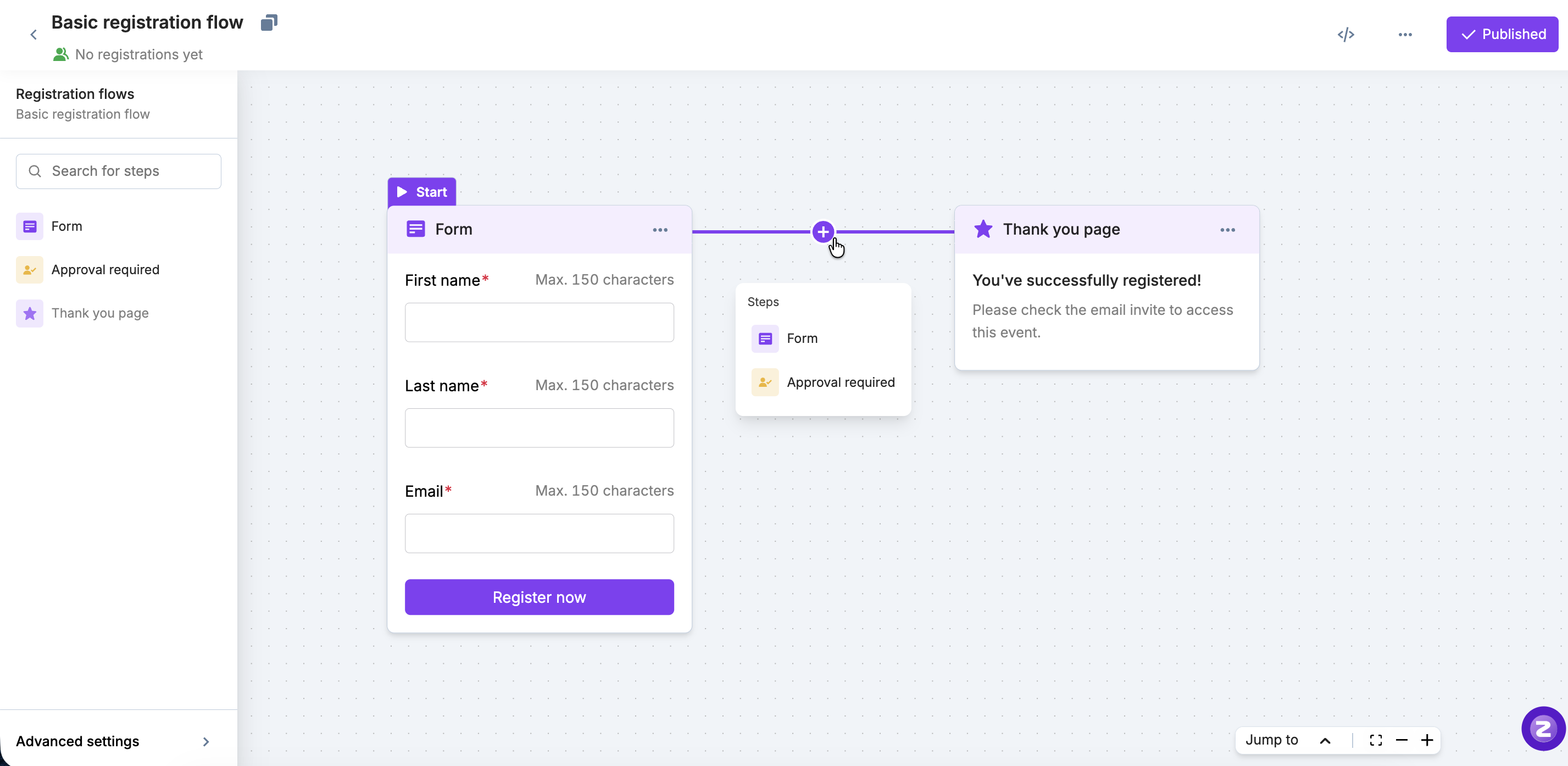
Hover over any connector and you can see a ‘+’ symbol. Click on that and choose form.
In the form section, you can add or edit fields on the registration form. Edit the display name of the standard fields.
You can only edit the display name of the standard registration fields. Other properties cannot be edited.
Adding fields to a form
Click +Add field to add a new standard or custom field.
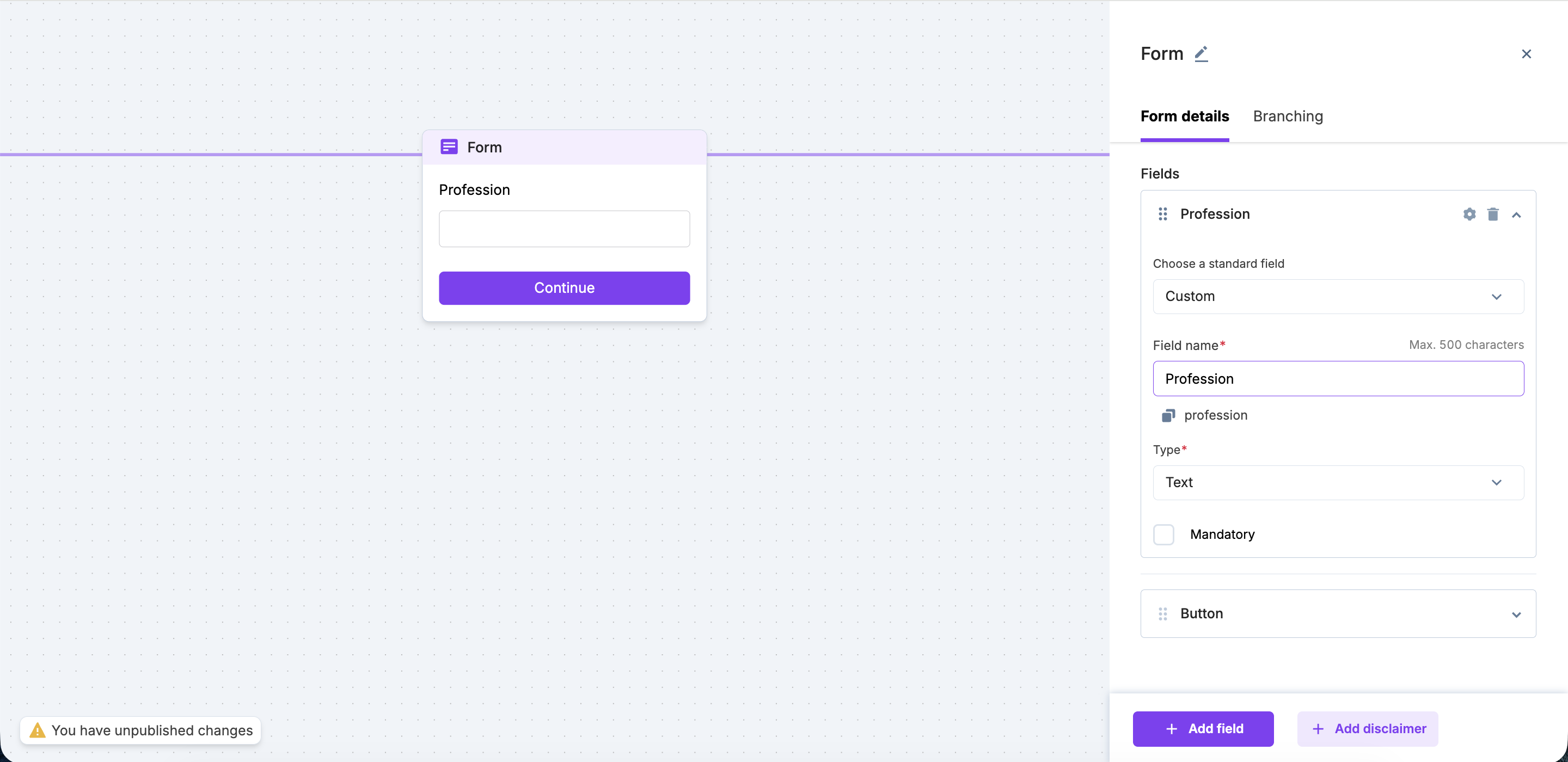
You can choose from a list of standard fields or create a new custom field (default).
Select an option from the Type dropdown to select the data type.
Text: for text inputs
Email: for inputs in email format
Phone number: for inputs in phone number format
URL: for inputs in URL format
Country: This shows the country list as a dropdown
Select (Dropdown): to select input from a list of options. You can add your options in an additional field called ‘Options.’. You can choose to use this field as a dropdown or radio buttons.
Multi-select: dropdown options with multi-select. You can choose to use this field as a dropdown or checkboxes.
Number: for inputs in number format
Rich Text: for inputs in rich-text format. You can add iFrames in rich text fields.
Date: for inputs where a date must be selected.
Date time: for inputs where both a date and a time must be selected.
Optional: Select the Mandatory checkbox if you wish to make it a mandatory field.
Select the Hide field checkbox if you wish to hide this field on the form when people try to register.
Note: Mandatory fields cannot be hidden.
Click the +Add logic button to add a field condition to your form.
On the Edit logic and conditions modal, select a field from the list. Only those fields appear that come before this field
Select a condition. The dropdown list option is based on the field type (is & is not) and the option.
Note: You cannot add logic to hidden fields
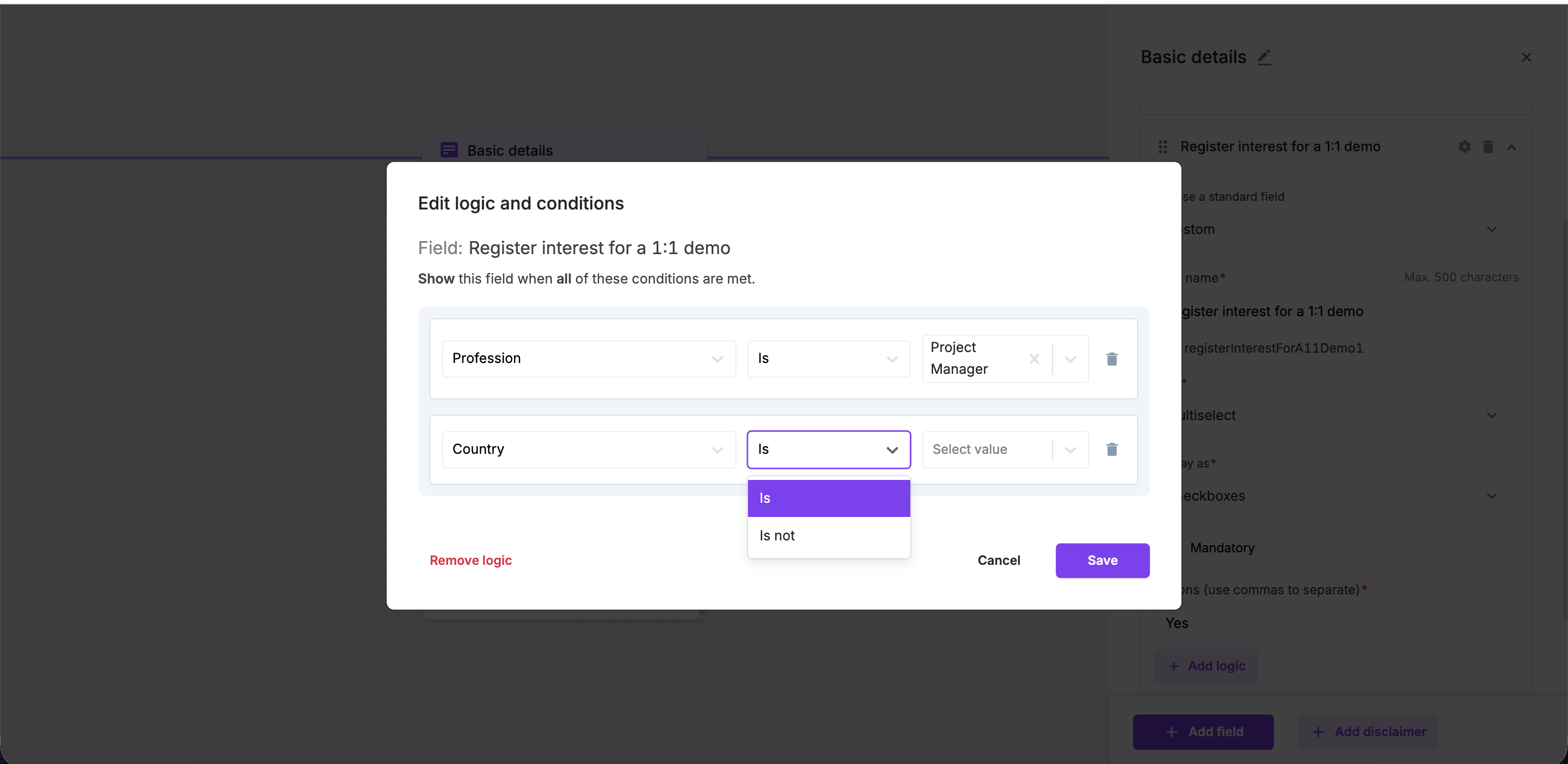
Now, in the Button section, rename the button name. Defaults to Continue.
Disclaimers: You can also add disclaimers to a registration form by clicking the +Add disclaimer button. You can also add conditional disclaimers by clicking the +Add logic button
After you’ve finished the editing form, close the side pane to view the updated flow diagram.
Note:
You can rename all forms and delete the additional forms that you created. The form that contains First name, Last name, and Email fields, and the Thank you step can’t be deleted.
If a registrant leaves the registration flow after filling out some forms and returns to the flow, the previously completed forms will be automatically saved, and you can continue with the next step.
This works only if the registrant fills the form again using the same device and the same browser.
Field Advanced settings
Click on the gear icon to view the advanced settings for a particular field.
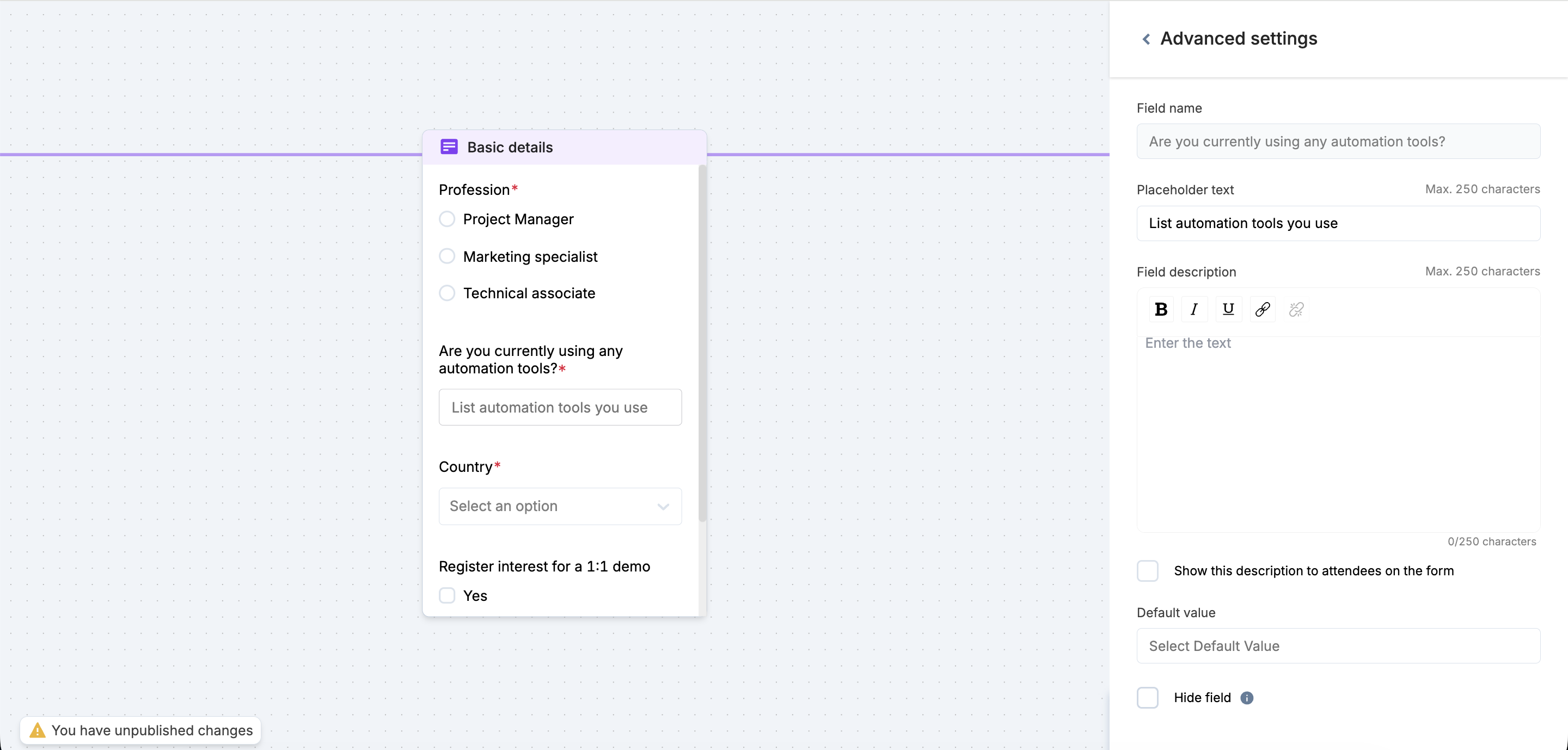
Add a placeholder text, to give a hint about the field
Add a Field description for your internal usage. You can also select the checkbox “Show this description to attendees on the form” to show this below the field as a helper text.
Under the Default value field, enter/select the value that is pre-filled to the attendees. For dropdown fields, you can select one of the added options or select ‘No default selected’ to not show any options.
The default value is not applicable for Rich text fields, disclaimers, date and time, and phone numbers.
Select/clear the Hide field to hide or show it to attendees on the form.
If you've received responses for this field before hiding, those responses remain unaffected.
If you want Zuddl to pre-fill the registrant's country value via geolocation, do not set default values for that field.
Editing the ‘Thank you page’
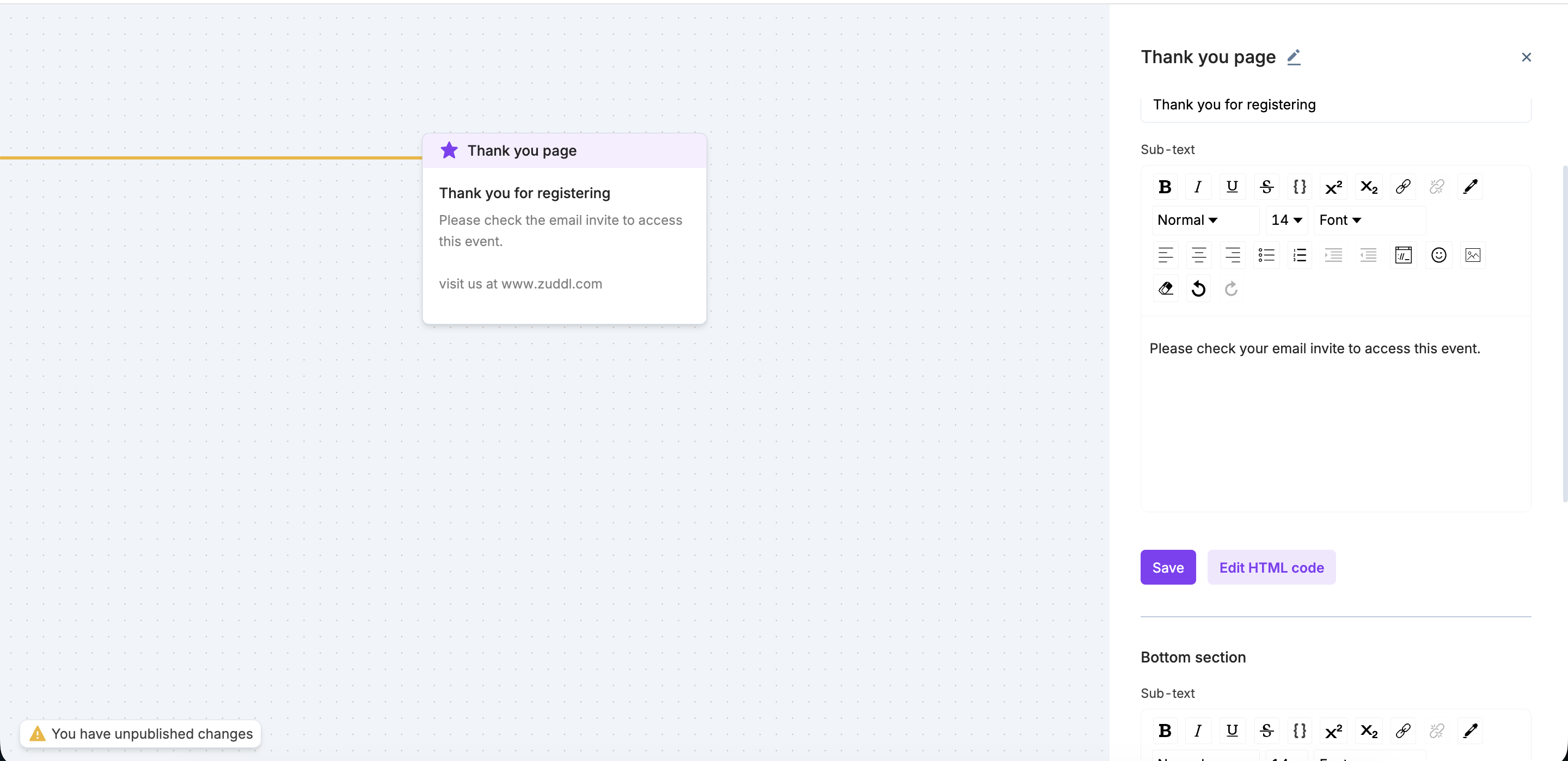
Edit the Success/Thank you page content by clicking on it.
In the side panel that opens, you can edit the standard messaging for Page title and the Sub-text to be shown to your attendees.
You can even turn ON the registration summary toggle to show the registrant details, and also a bottom section as a footer.
Publishing the flow
Publishing the flow makes it visible to attendees who plan to register for your event. After you have made all the changes, you can click the Publish button.
On the confirmation pop-up, click Publish. This makes the recently edited registration flow live for your attendees.
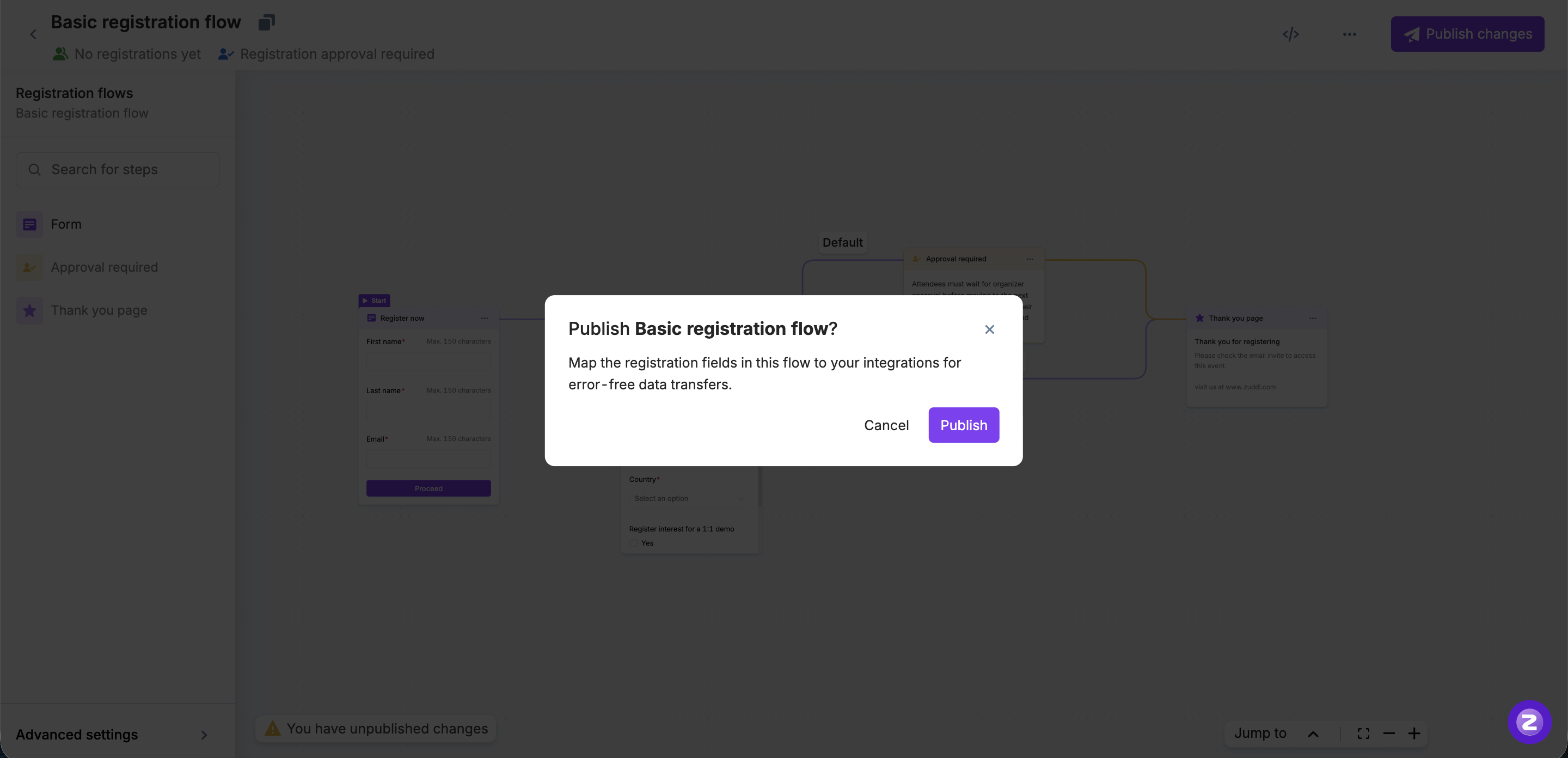
Note: The confirmation pop-up appears only when you publish a registration flow for the first time. After that, new changes are published when you click the Publish button.
You can click the </>Get embeddable code to copy the embeddable code to your clipboard to paste it at any desired web page to show the Zuddl registration form and collect registrations.
If you wish to embed the widgets on third-party pages, you can use the ‘data-zuddl-sticky-header-id’ attribute, which needs to be added to the flow embed code if your page has a fixed (sticky) header.
View and restore version
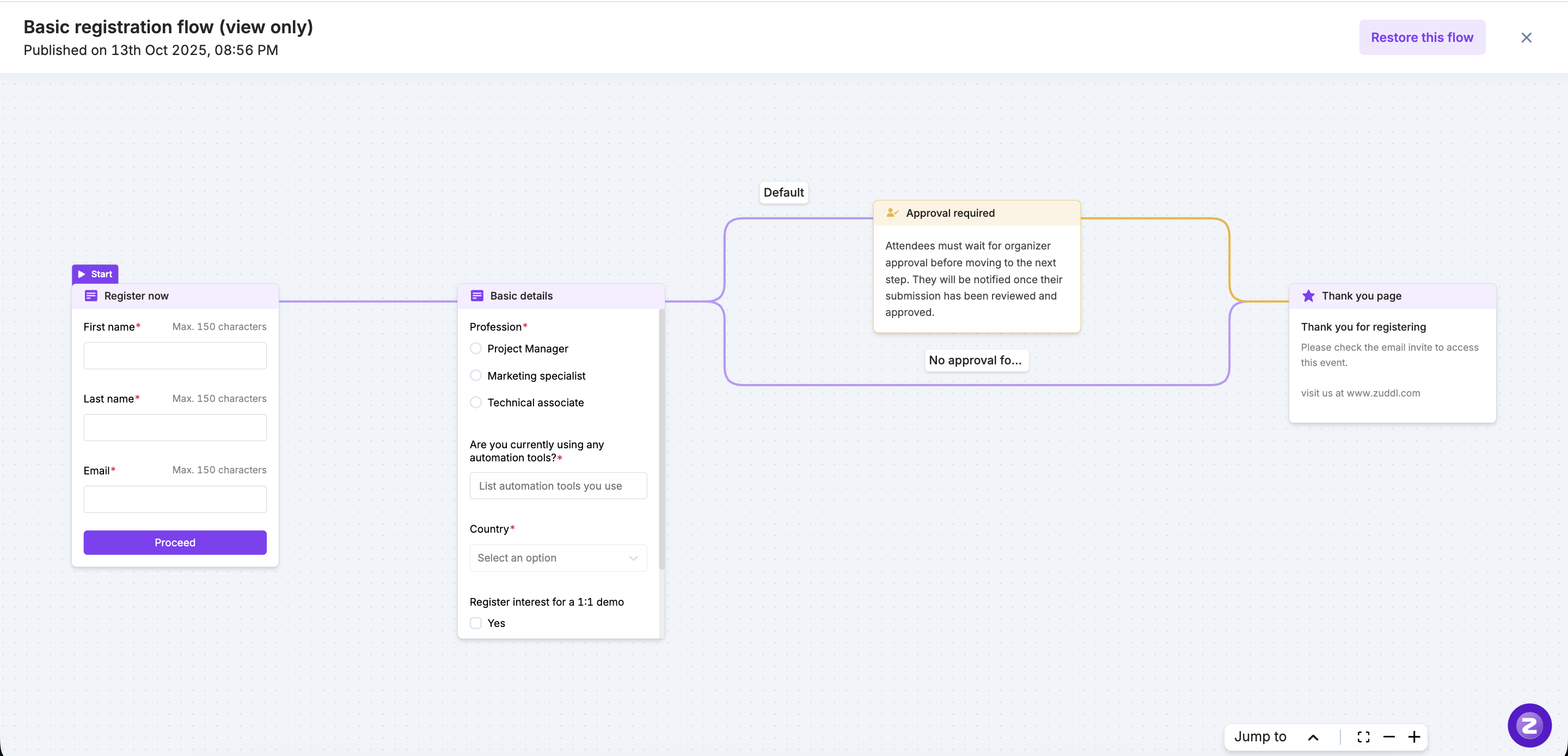
Once published, you can view the published flow by clicking the three dots icon at the top.
If you are making changes to an already published flow, you can restore the published version by clicking the Restore this flow button on the published flow view, should you face any errors while editing the flow.
To view the previously published version, do not publish the data being worked upon.
Troubleshooting errors
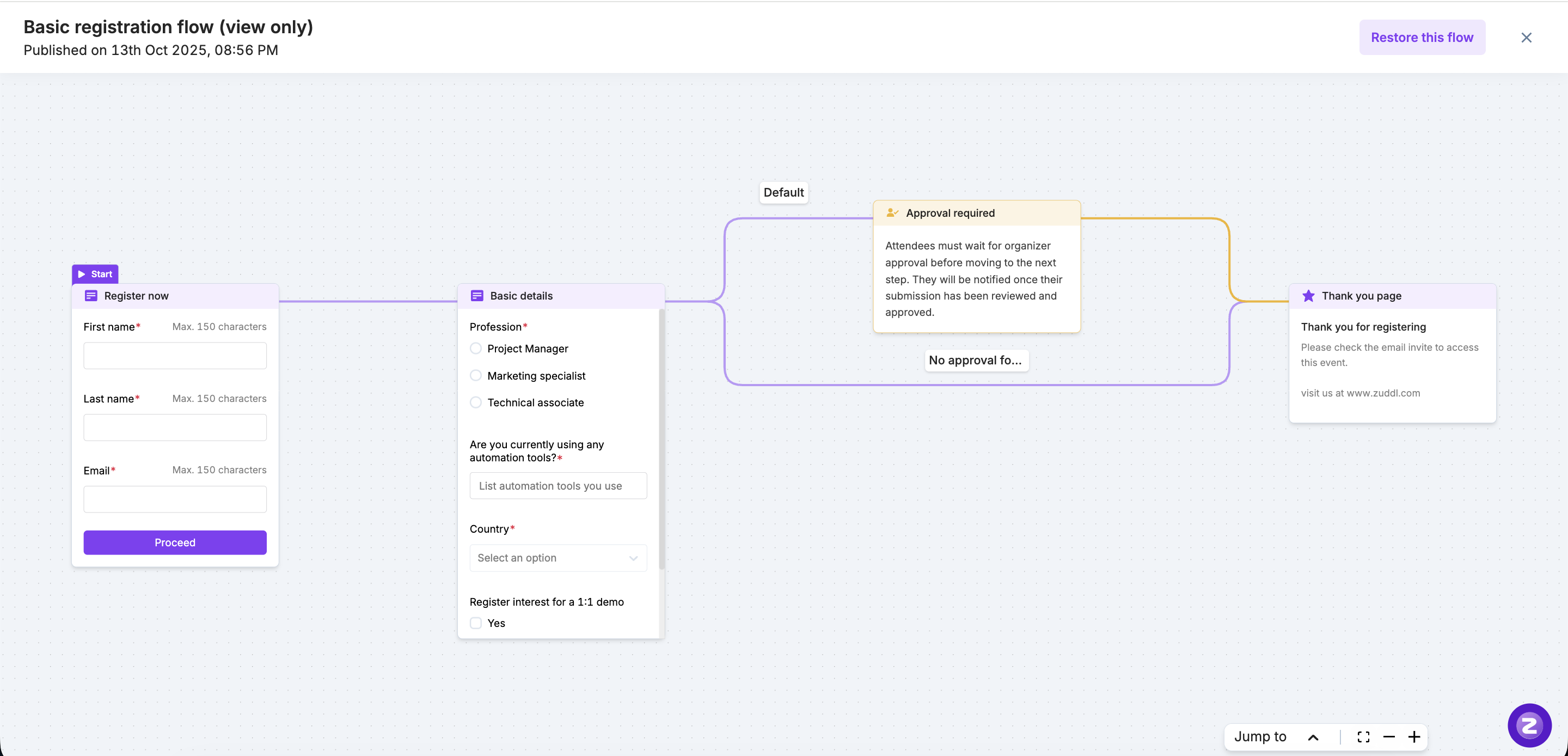
If there are any errors in the flow, they will be highlighted, as shown below. You can view more details to understand the error and fix it in the flow.
Create branching in your registration flows
You can create branches in the flow to cater to different paths to different audiences. For example, if an employee of your company tries to register for your event, you can take them directly to the thank-you page, and you can take the rest of the users through the usual flow.
To create a branch:
Go to the step that requires branching and go to the editing page.
Select the Branching tab. The default branch step is the immediate step after the root step, and the same is shown in the list.
Click on the +Add branch button.
On the branch edit form, enter the following:
Select the field on which the branching condition is to be applied. (Hidden fields are excluded).
Select the desired value.
Select the Go to step from the dropdown with the default branch in mind. This is the step that the branch should lead.
Once you've added the Go to destination, you cannot change it. You would need to delete the branch and start over.
Add more conditions if required by clicking the +Add Condition.
In between two conditions, you can select an operator, namely, 'Or' or 'And'. You can also delete conditions by clicking the Delete condition option.
Once you've added the Go to destination, you cannot change it. You would need to delete the branch and start over.
Ensure that you've created all steps in the right order before you get started with the branching logic. You can use spreadsheets or drawing boards to visualize the flow before you create it.
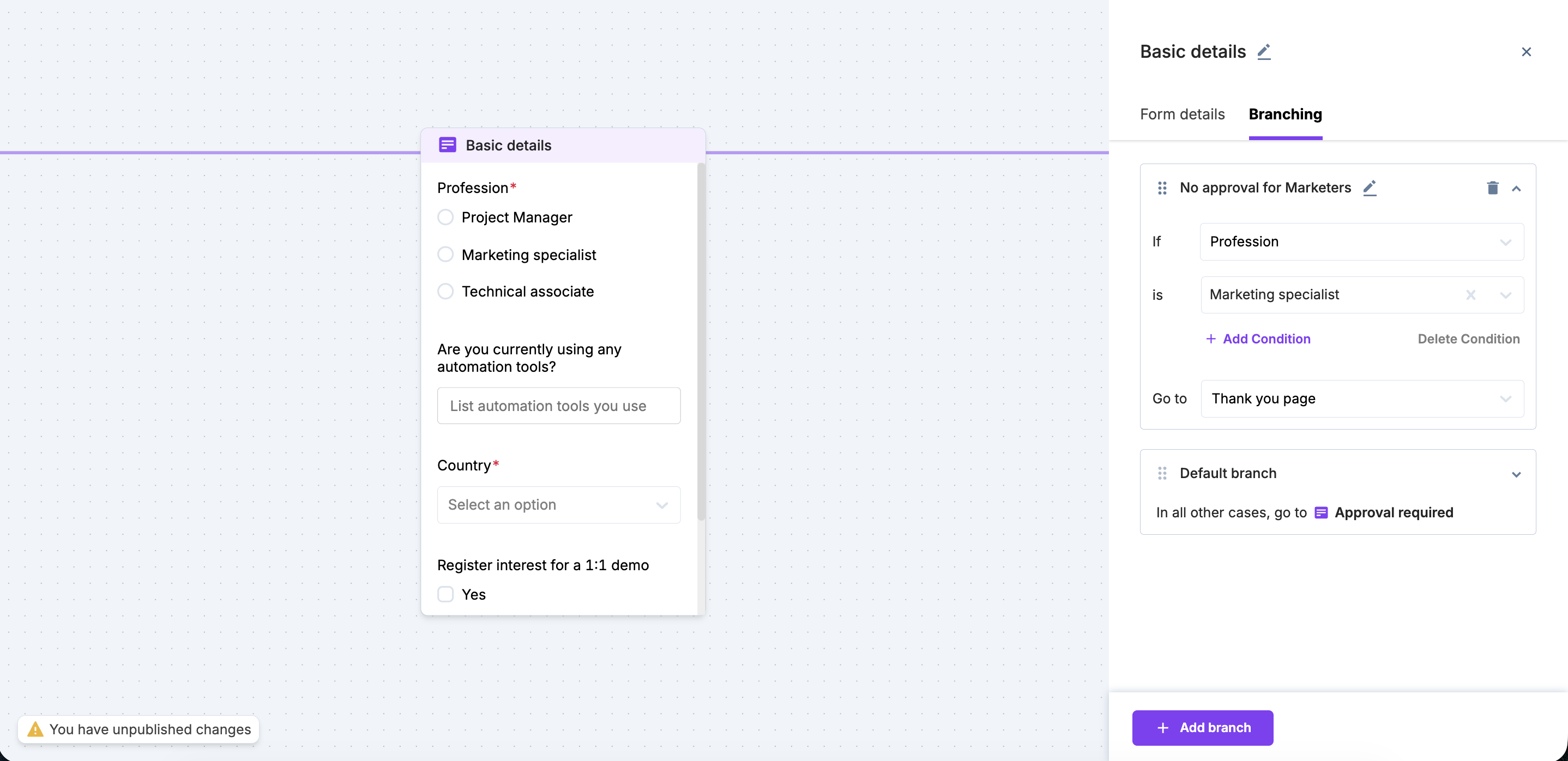
You can edit your branch name if required. The branch names are displayed on the flow line and allow your team members to quickly identify the branch by its name.
This creates a branching logic for your registration flow.
On the flow, you can view the branching conditions by hovering over the branch name.
You can also create steps in between a flow by clicking + button in the flow line, the step it was pointing to before creating a branch will be the default step
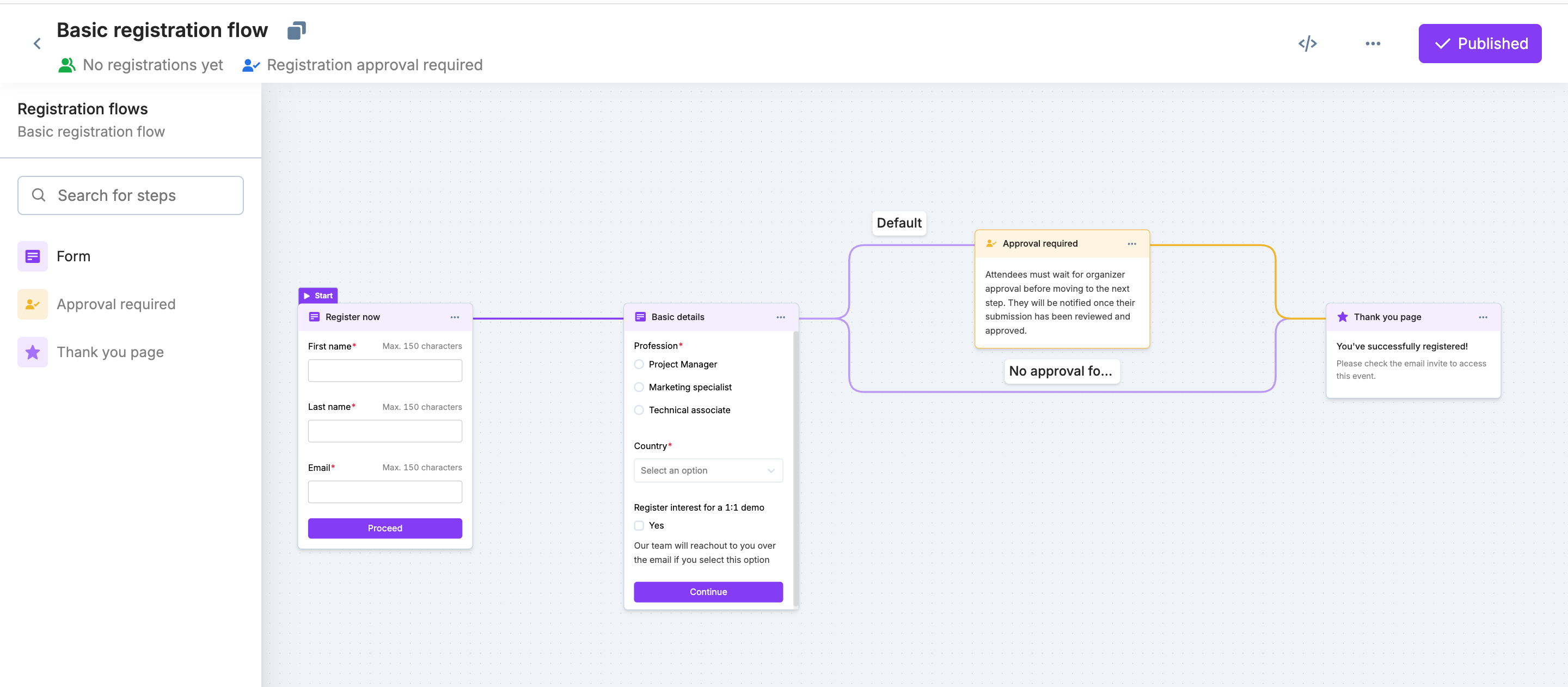
Example: A Multistep registration form with branching to skip approvals based on a particular field.
Include Registration Approvals in your flow:
The approval flow requires attendees to go through an approval process where they wait for the organizer's approval before moving to the next step.
To add an approval step in your flow, just hover on a connector, click on the + icon, and select ‘Approval required’.
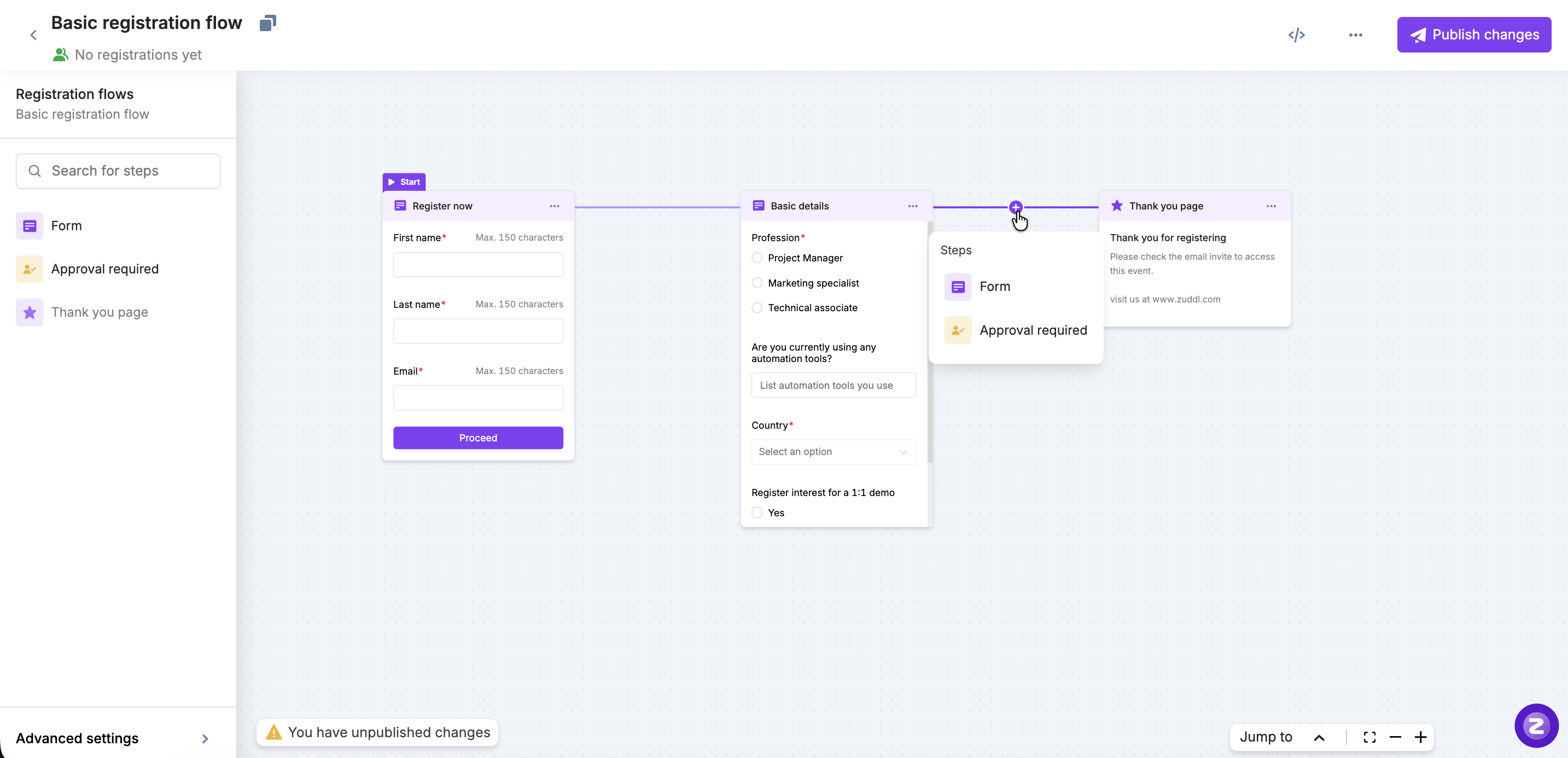
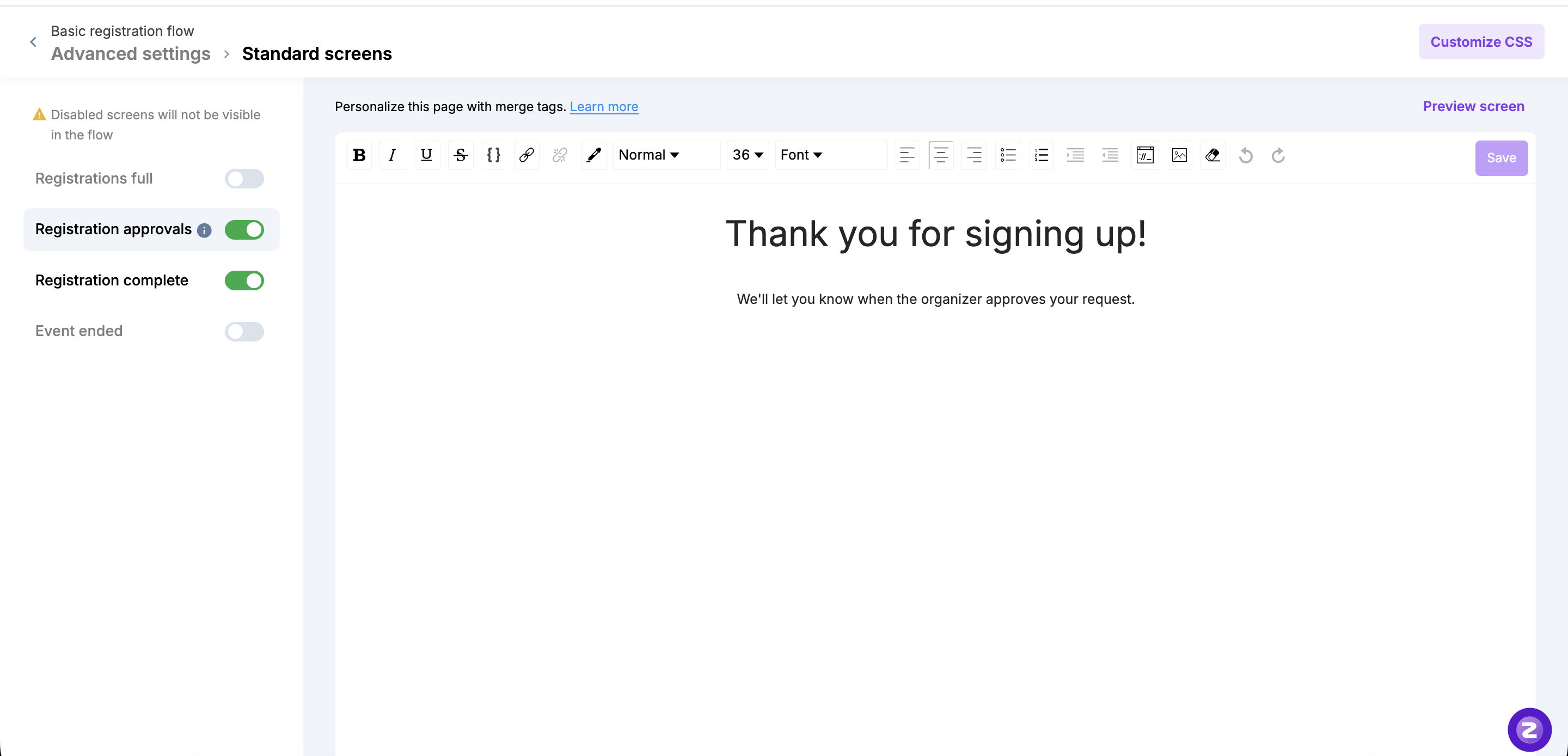
Once added, you need to enable the standard screen for Approvals. This is the screen that attendees see when their registration request is submitted for approval.
To do this, click Advanced settings, click Standard screens > Customize screens. Here, you can find the screen for Registration approvals. You can customize the content here as required using merge tags.