How to use Standard screens and Merge tags in a webinar
Last updated: November 19, 2025
You can customize standard screens (different from the default screen) that can be shown to attendees during the registration flow when a specific condition is met. You can use rich text options and merge tags to customize them.
For example, when registration is full or event has ended, you can customize the page to show informational or error messages based on the use case.
Customizing the Standard screens:
To customize a standard screen
Log in to your Zuddl dashboard.
Navigate to Registrations > Registration flow
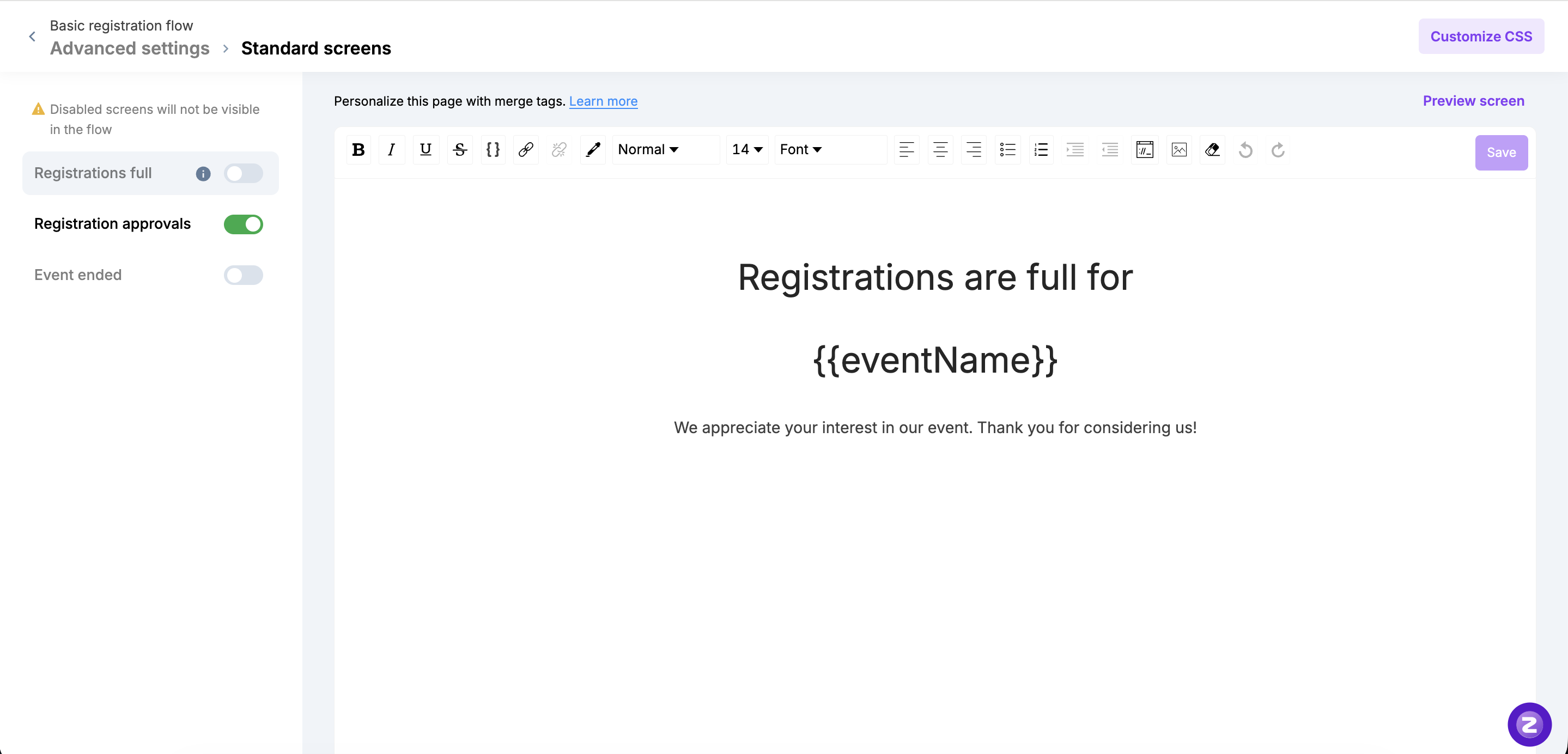
Inside the registration flow setup, click Advanced settings > Standard screens.
Here, you can toggle ON the required standard screen and customize the content in it using the rich text field options.
Using merge tags in Standard screens or Thank you page
You can customize the Thank You page or any standard screen in the flow builder using HTML merge tags, which allow you to personalize the page contents based on information unique to the attendee and the event.
Event details Merge tags
Merge tag | Information used |
{{eventName}} | The name of the event. |
{{eventStartDate}} | The start date of the event (according to the event time zone). |
{{eventEndDate}} | The end date of the event (according to the event time zone). |
{{eventStartDateTime}} | The date and time when the event begins. (according to the event time zone). |
{{eventEndDateTime}} | The date and time when the event ends. (according to the event time zone). |
{{eventTimeZone}} | The time zone of the event. |
{{eventTimeZoneShort}} | The 3-letter abbreviation of the time zone. |
{{eventLogo}} | The URL of the event logo, as uploaded in the branding setup. This merge tag can be used using the image upload tool’s URL field. |