How to Add a Snippet to Your Zuddl Registration page
Last updated: August 19, 2026
You can add custom tracking or functional scripts to your Zuddl pages using the Snippets feature. Follow the steps below to insert any script into your event or workspace.
Steps to Add a Script
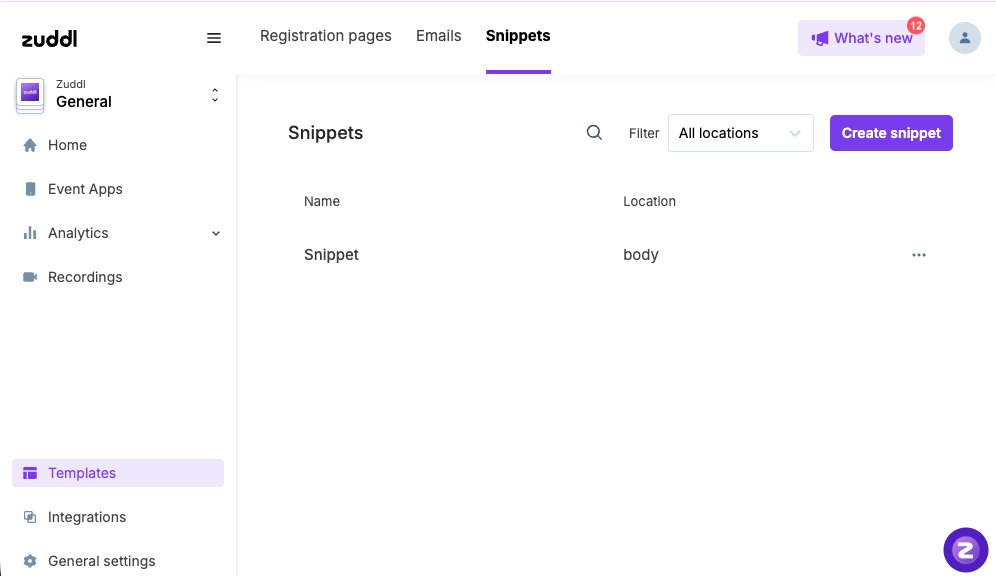
Log in to your Zuddl workspace, Navigate to Templates → Snippets from the left panel.
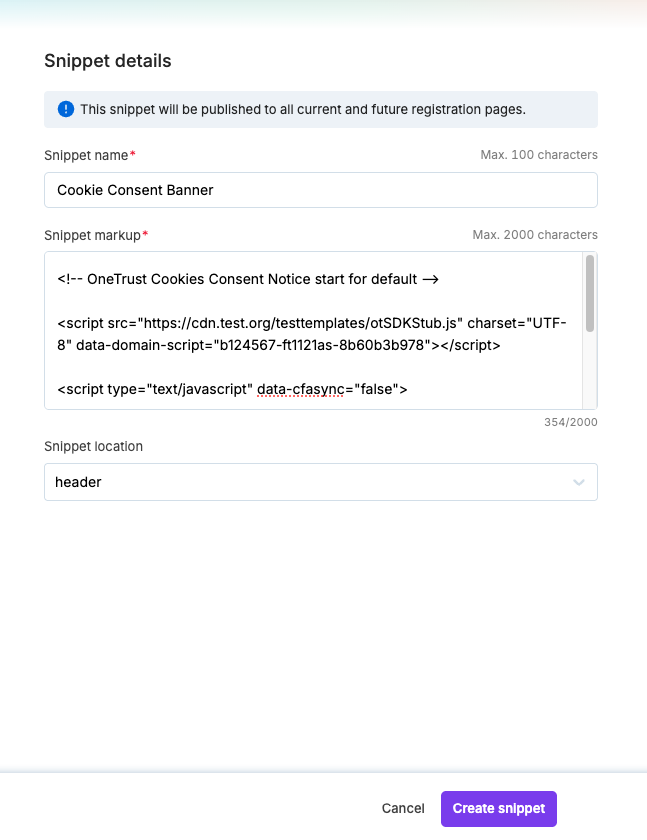
Click Create Snippet. Enter a name for your snippet (e.g., “Cookie Consent Script”, “Tracking Code”).
In the Snippet Markup field, paste your entire script code.
Select where the script should load:
Head – Loads before page content; ideal for tracking or critical scripts.
Body – Loads after page content; ideal for non-critical scripts.
Click Create Snippet (or Save) to apply the snippet across the workspace.
Open a registration or event page and confirm the script is loading correctly.
Disclaimer
Adding custom scripts may affect page performance, interfere with existing functionality, or cause unexpected behavior.
Please ensure your scripts are tested and verified before adding them to production events.
Adding a Script to a Single Site Only
Snippets created under Templates → Snippets apply across your workspace. If you want a script to load on just one site, add it directly in that site’s landing page editor instead.
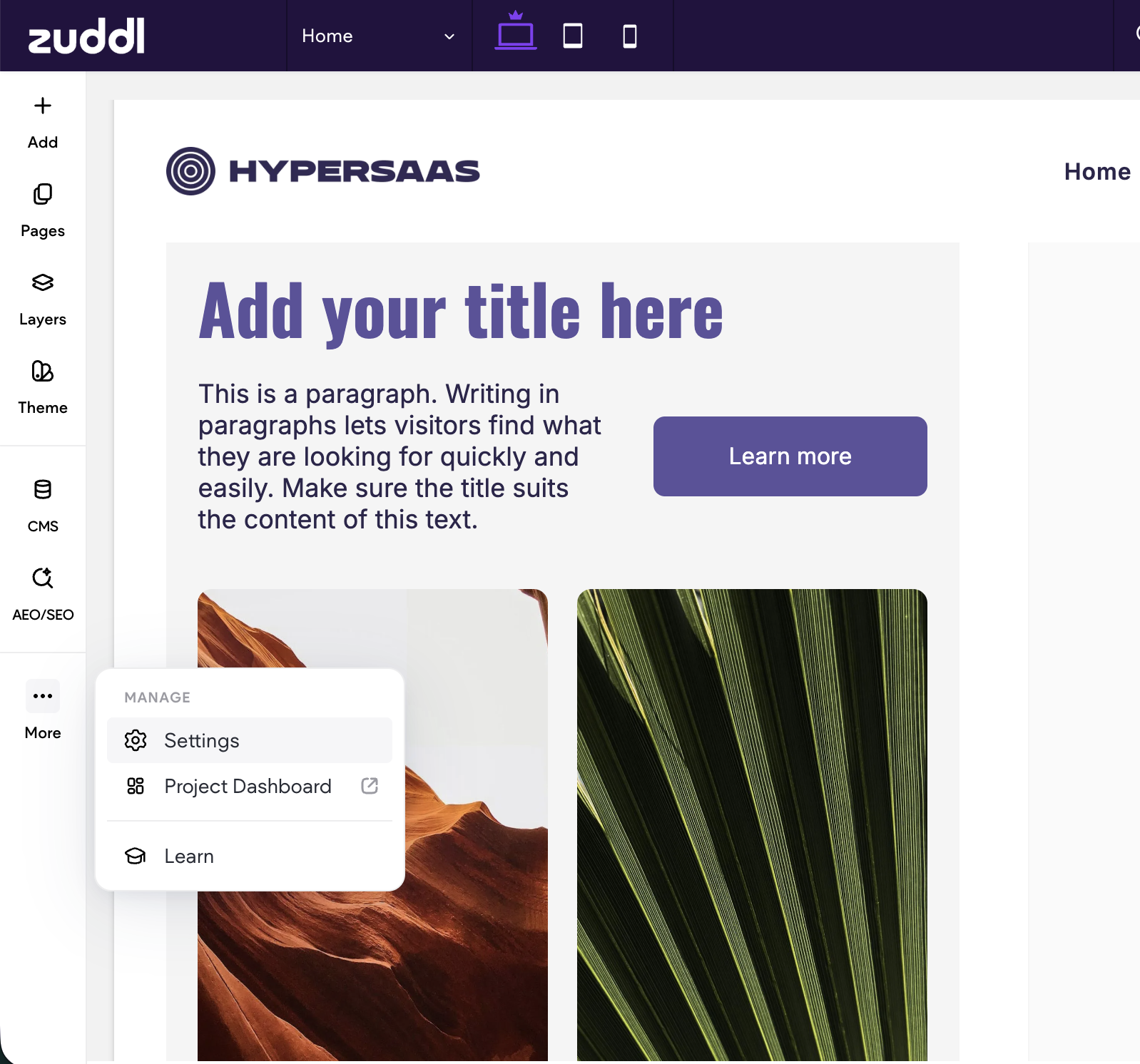
Open the site in the landing page editor.
In the left panel, click More (…), then select Settings.
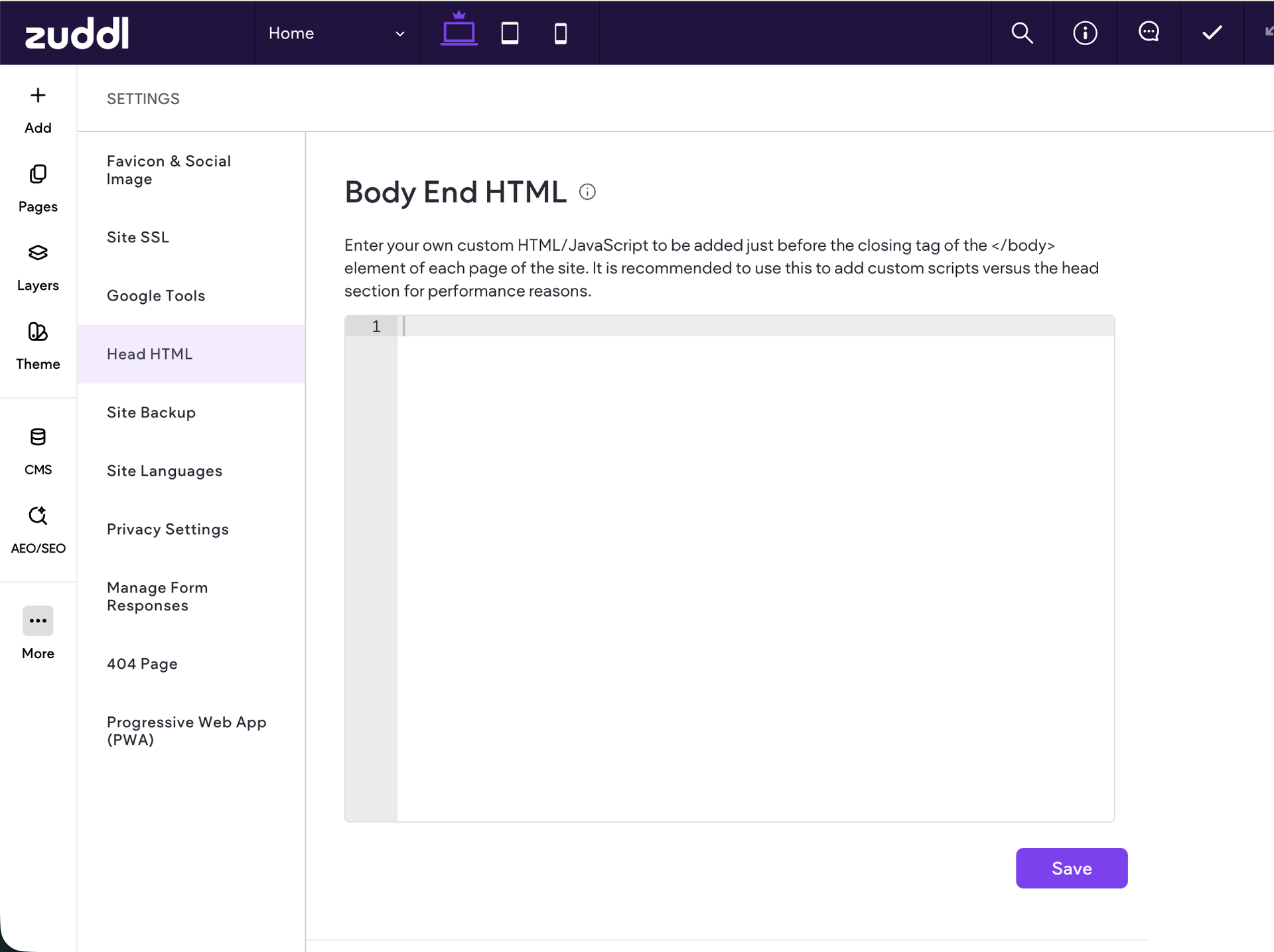
In the Settings list, click Head HTML.
Paste your script into the field where it should load:
Head HTML – added inside the <head> tag of every page of this site; ideal for tracking or critical scripts.
Body End HTML – added just before the closing </body> tag of every page of this site. Recommended for custom scripts, as it avoids slowing down page load.
Click Save.
Publish the site, then open a page and confirm the script is loading correctly.
Note: Scripts added here apply only to the site you edited — they are not shared with other events or sites in your workspace. Use a workspace Snippet when the script needs to run everywhere.