How to Add Custom Domains for your Zuddl Event
Last updated: September 5, 2025
Custom domains allow you to use your own domain for your event landing pages and virtual platform instead of using the default Zuddl URLs. This helps create a seamless experience for attendees and reinforces your brand identity. Setting up a custom domain requires configuration and updates to your domain’s DNS settings.
You can use the custom domain for the event's registration page, magic links, event links.
If you want to use a custom domain for your registration page, you must configure the custom domain before starting the registrations.
Steps to add a custom domain
To add a custom domain,
Go to General settings and click Domains from the left navigation menu.
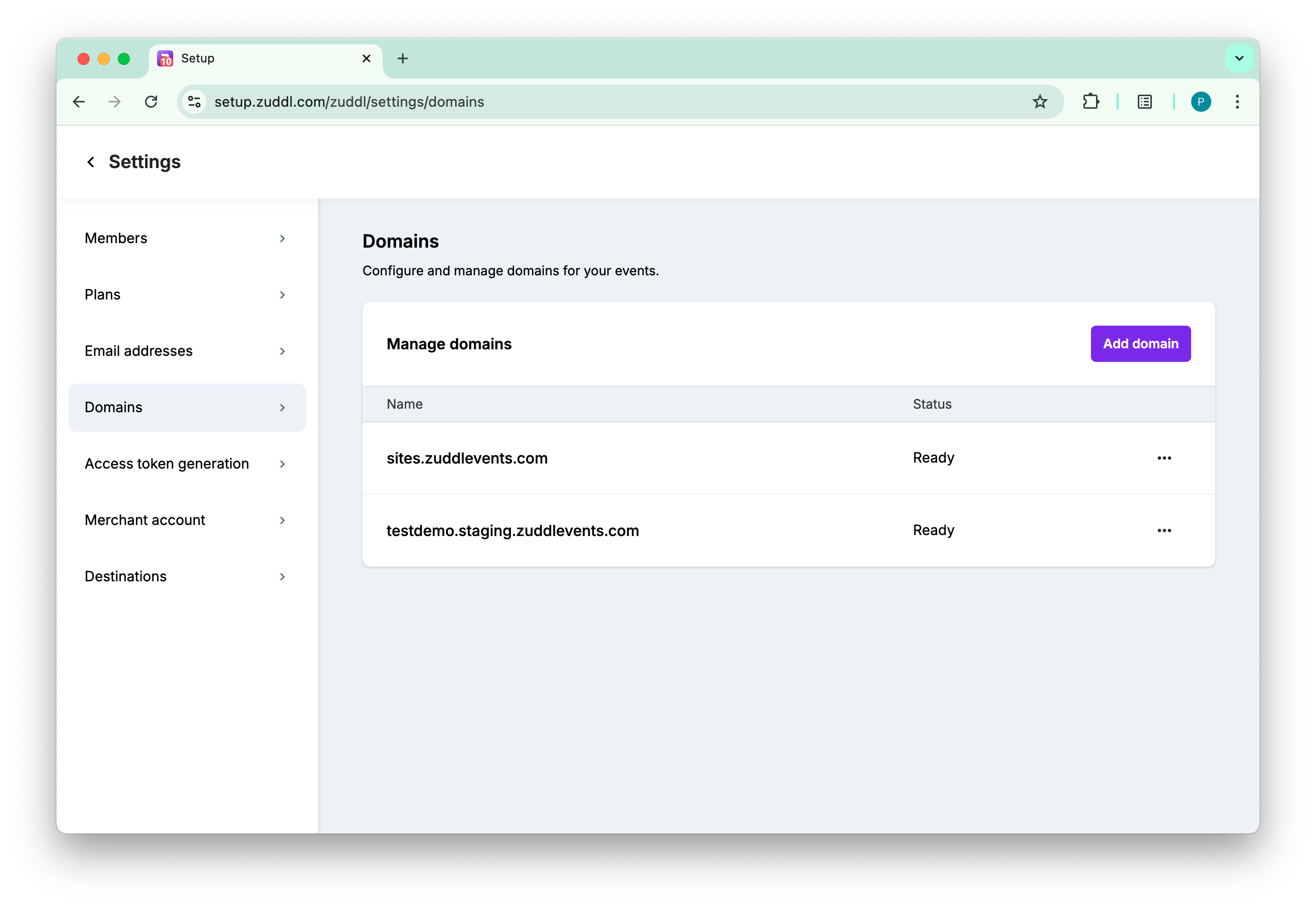
Click the Add domain button.
In the Domain name field, enter your custom domain name. Let's say 'acme.events.com'.
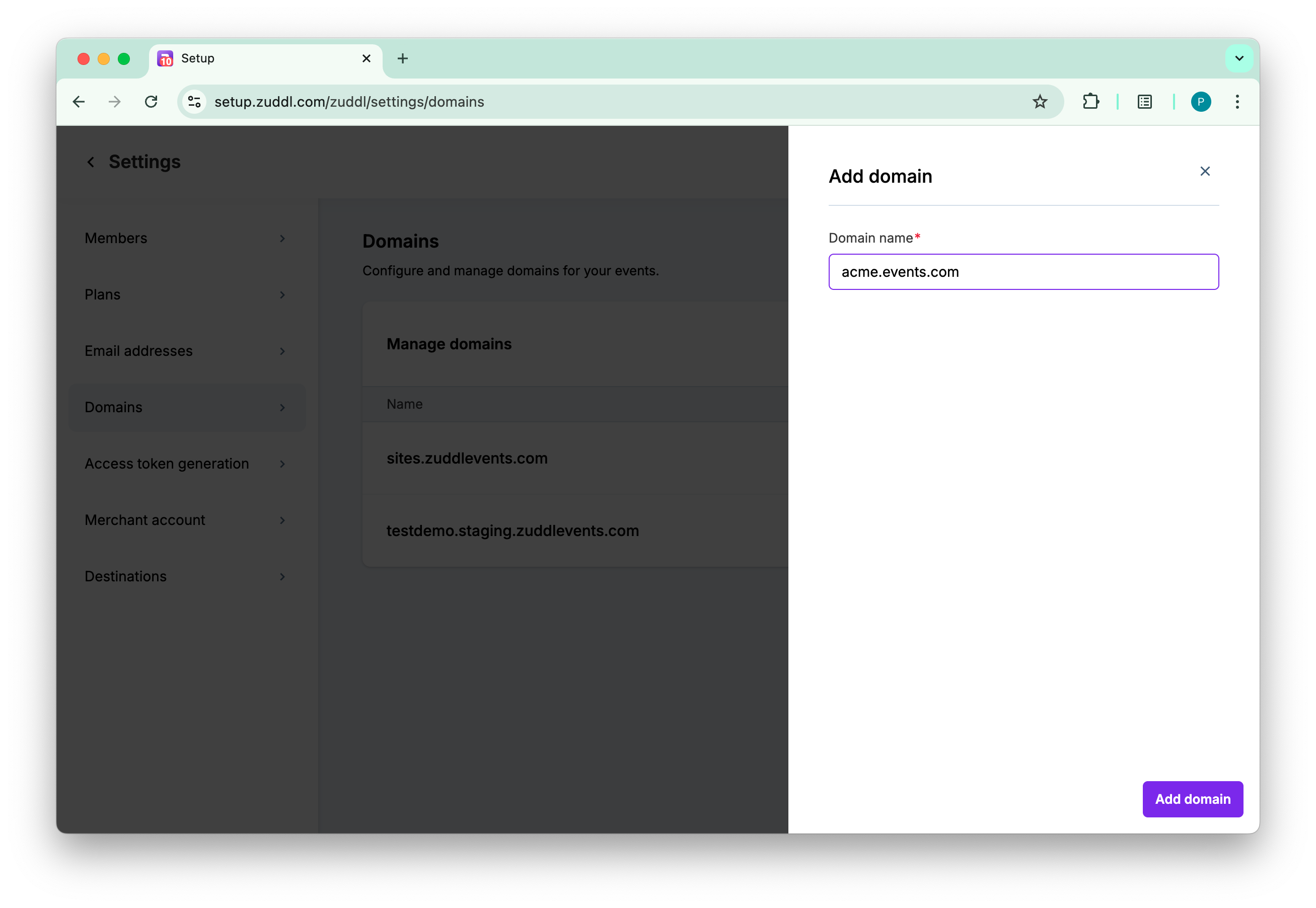
Click Add domain.
Add the provided CNAME and TXT records; Host name and Value, and paste them in their respective records in your DNS settings (GoDaddy, Cloudflare, etc.).
Wait for DNS propagation (usually 5-15 minutes).
Click Verify Domain on your Zuddl dashboard.
What is a TXT record?
A TXT record is added to enhance the security of your domains and is proof that you own the domain.
If you delete a domain but do not remove the DNS records, the 'TXT' record will prevent someone else from adding your domain to their account, receiving traffic meant for your domain. The TXT record is uniquely generated every time you add a domain.
The DNS may take up to 72 hours to update, depending on your host.
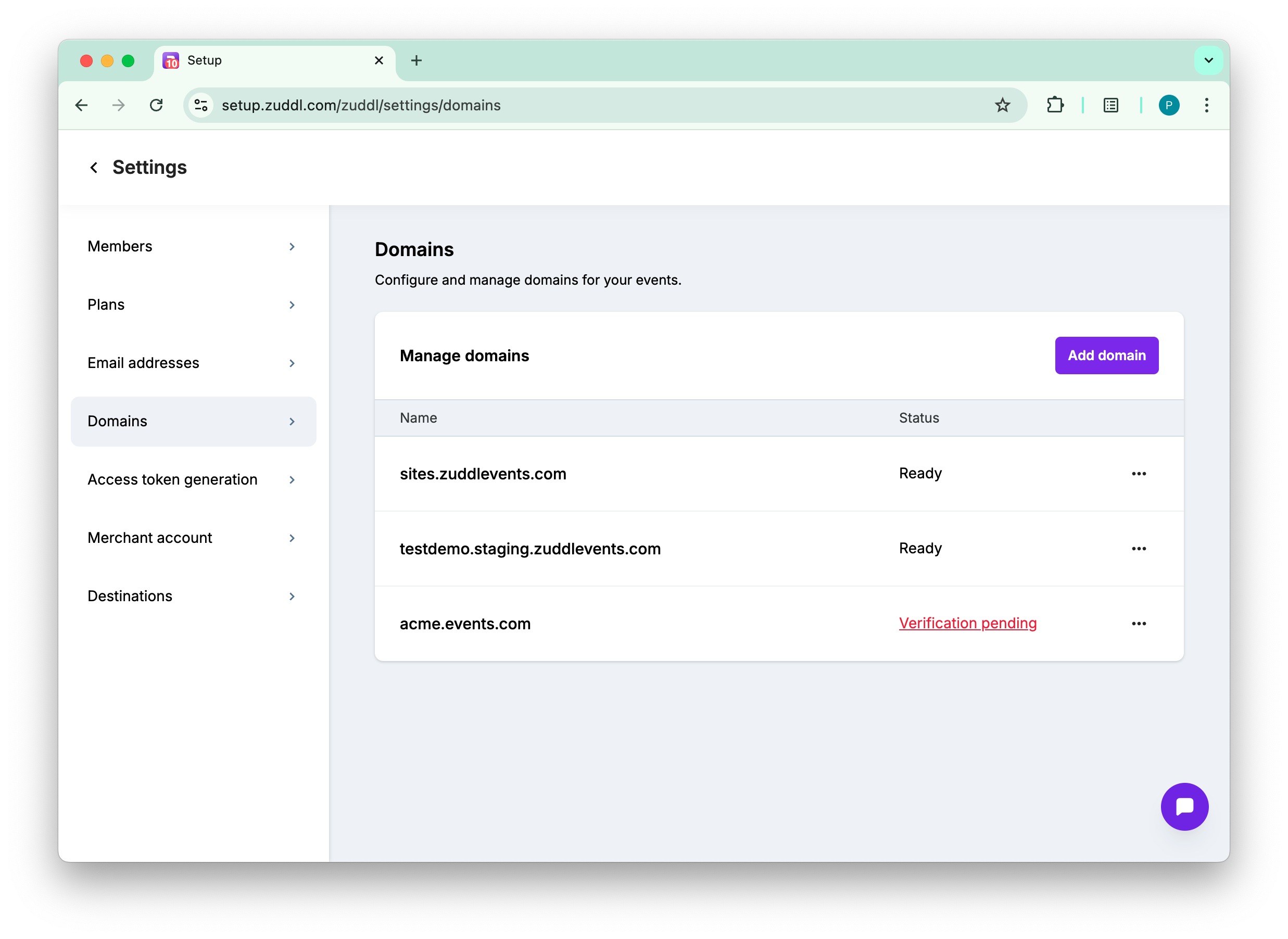
This initiates the verification process in the background and adds your domain to the list with a verification pending status.
Troubleshooting
If your domain verification has failed, follow the steps below:
1. Check that both CNAME and TXT records are added correctly
2. Wait a few more minutes for DNS changes to take effect
3. Use a DNS checker tool to confirm your records are visible
Verification States
StateDescription | |
Verification pending | The DNS record verification is pending. |
Verified | The copy-pasted DNS records match and have been successfully verified. |
Ready | The domain is ready to be used for your events and registration pages. When the domain is ready, an email is sent to the user who added the domain. |
Other actions
The more options for a domain let you do the following actions:
ActionsDescription | |
Make default | By making a domain, it will be selected by default for all new events that are created going forward. You can, however, change the selection at the event level. You can make a domain with Ready status as the default. 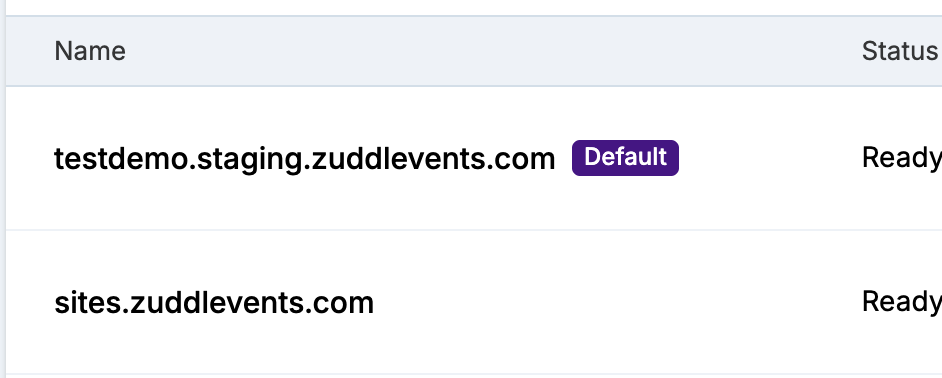 |
View event | This lets you view all the events that use the particular domain. 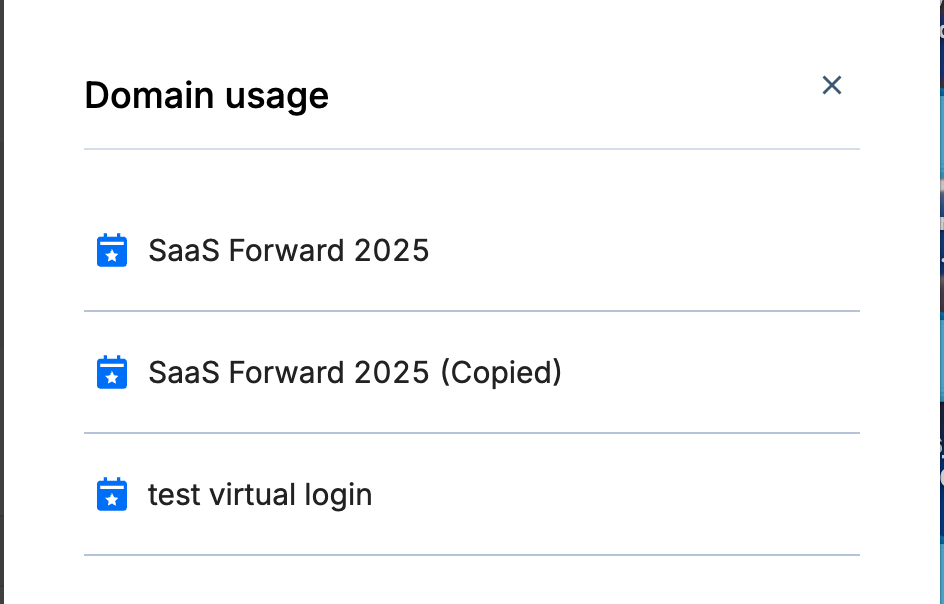 |
View DNS records | This shows the DNS records |
Delete | Only the domains that do not have any events associated with them can be deleted. |
Event-level settings
To configure custom domain at the event-level
Go to an event dashboard.
Under Event info, click Domain settings.
On the current domain field, choose the domain for the particular event. By default, app.zuddl.com is selected
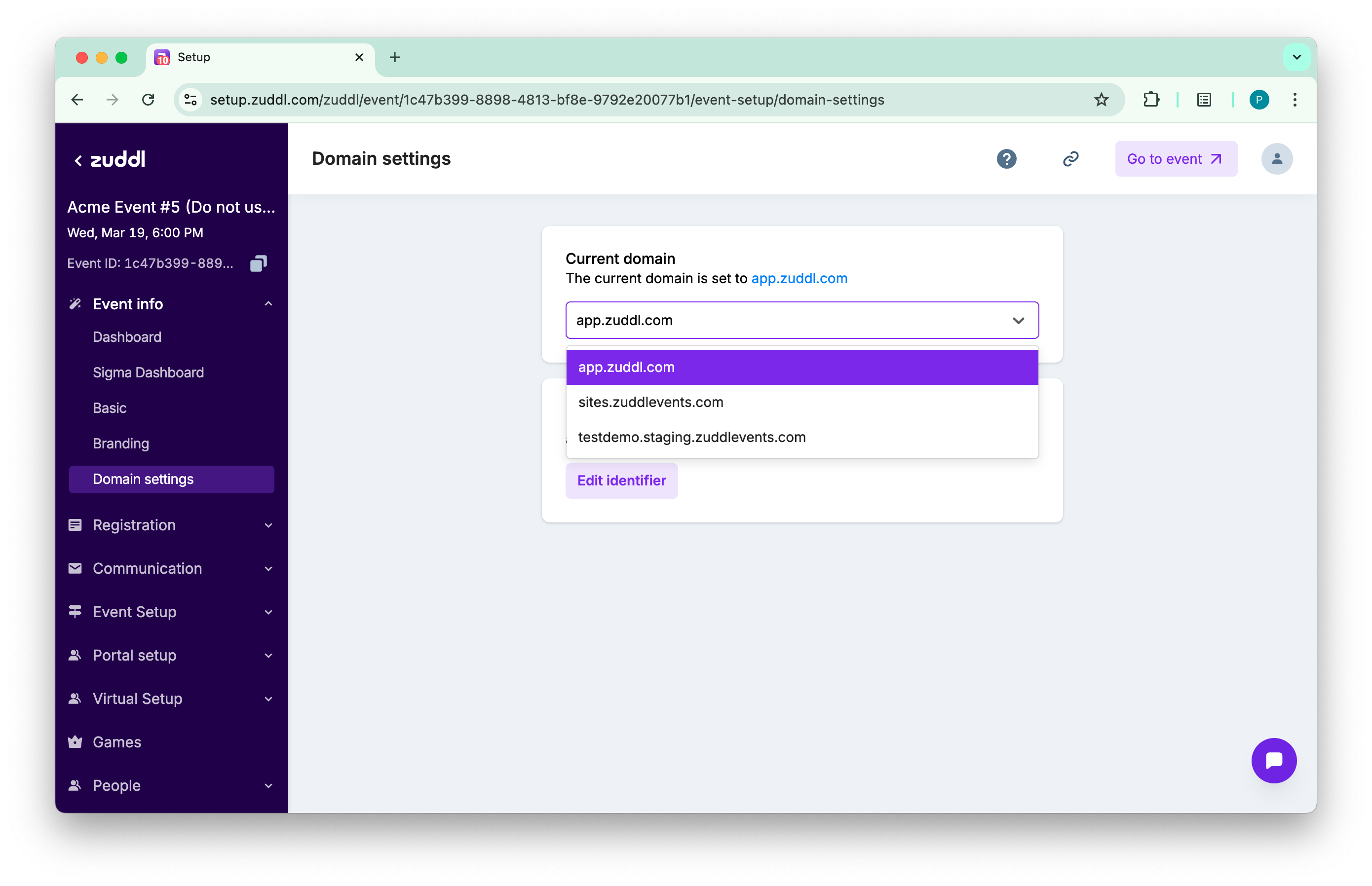
If you are using Zuddl domains only, the organization identifier will be used.
Upon changing the Zuddl domain, a change confirmation dialog appears, click Confirm.
By changing the domain, any existing registration page link for this event would stop working.
Optional. You can toggle on the Make this event default for the custom domain to allow this event's registration page at the root level. Toggle off to use a specific event identifier for this event's registration page.
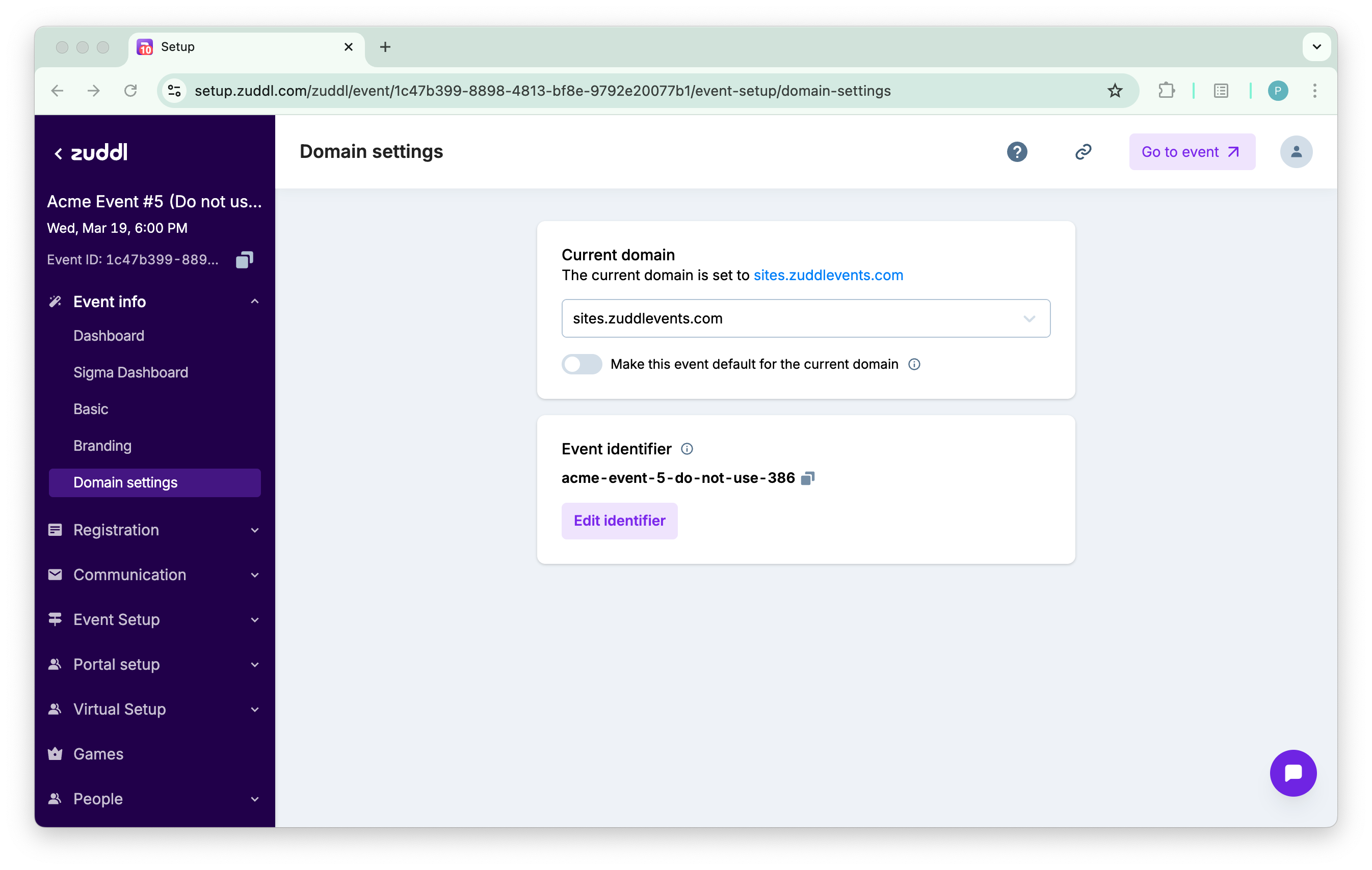
Only one event can be made default for a domain at a time.
If the toggle is turned off, under the Event identifier, you can either go with the system-generated event identifier or click Edit identifier to use a custom path name.
An Event identifier is a unique, readable text string that appears at the end of the registration page URL for this event. The default event identifier is the title of the event truncated to 124 characters along with 3 random characters. When toggled off, all pages will only become accessible at the path level. All paths will have an event identifier as part of the URL. The root-level URL will give 404.
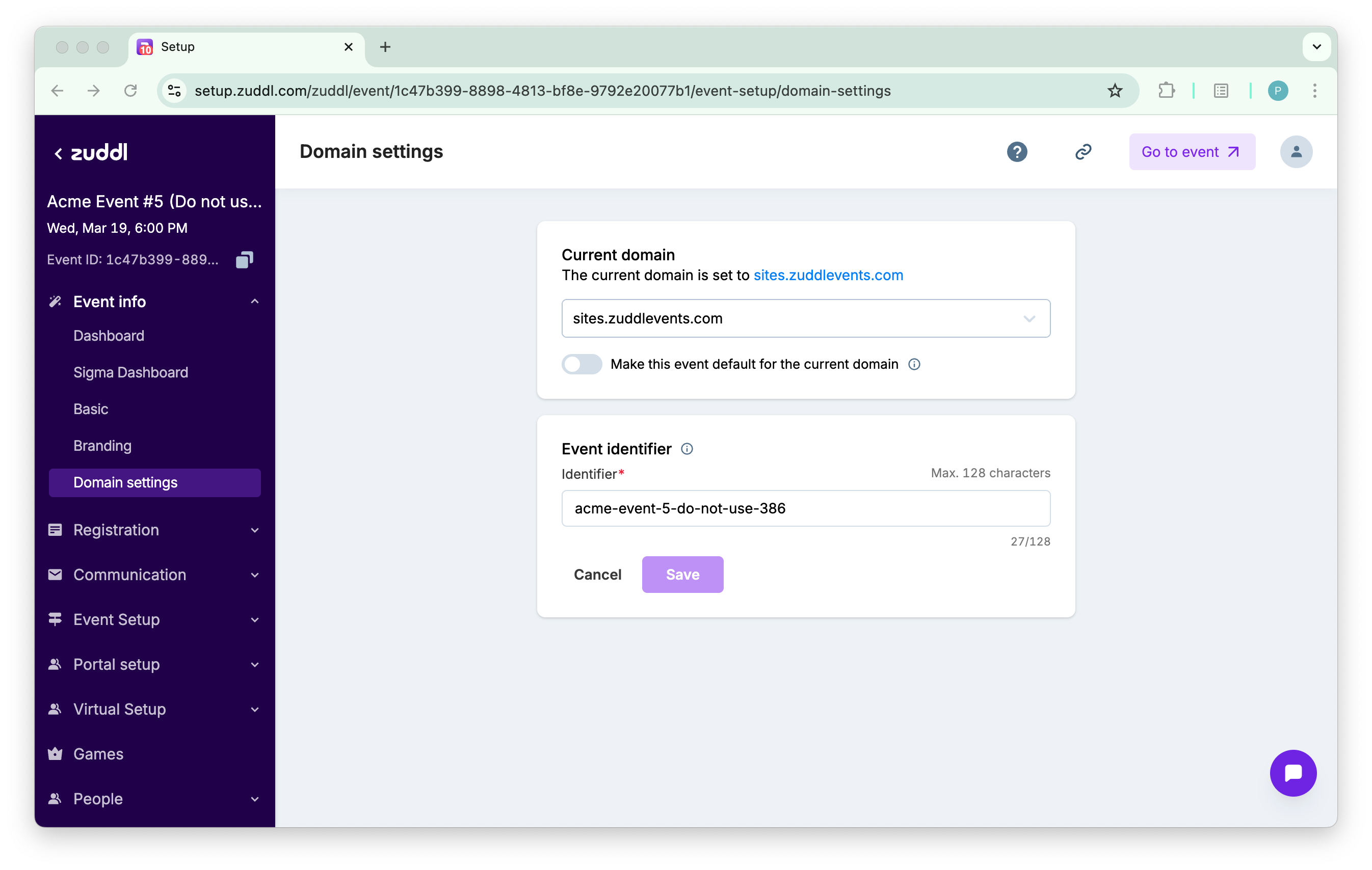
This updates the custom domain for this event.
Allowed characters in the event identifier
All UTF-8 characters including numbers and hyphen. '@' and '/' is not allowed.
Things to note
When you go to an event from the dashboard, i.e clicking the Go to event button, will redirect you to the Zuddl default domain and not the custom domain.
On the dashboard homepage, when you click Copy link to copy the event link, the copied URL is the default Zuddl domain URL and not custom domain URL. Any navigation to event/portal/studio etc from the setup side by the organizer will use the zuddl default domains only. Currently, there is no way for organizers to log in to the custom domains.
You can go back to using the Zuddl default domain from using custom domain at any time. The Zuddl default domain will follow the format domain_name>//.