How to Redirect Your Custom Domain Homepage to Another Website
Last updated: September 30, 2026
What This Does
Homepage redirect sends anyone who opens the bare address of your custom domain (for example, events.yourcompany.com) to another website of your choice, such as your company homepage or an events listing page. Any URL parameters on the visit, like UTM tags, are passed along to the destination.
Only the homepage (/) is redirected. Links to your event pages on the same domain keep working as usual.
Note: A domain's homepage can either redirect to another website or show a default event, not both. If an event is set as the default for the domain, turn that off first.
Before You Begin
You need access to Settings in your Zuddl organization.
The custom domain must be added and its status must be Ready. The option doesn't appear for domains that are still pending verification.
No event should be set as the default event for that domain.
Have the full destination URL ready, starting with
https://orhttp://.
Steps
Go to Settings and open Domains.
Under Manage domains, find the domain you want to redirect and click the ⋯ (more options) menu on its row.
Click Redirect homepage.
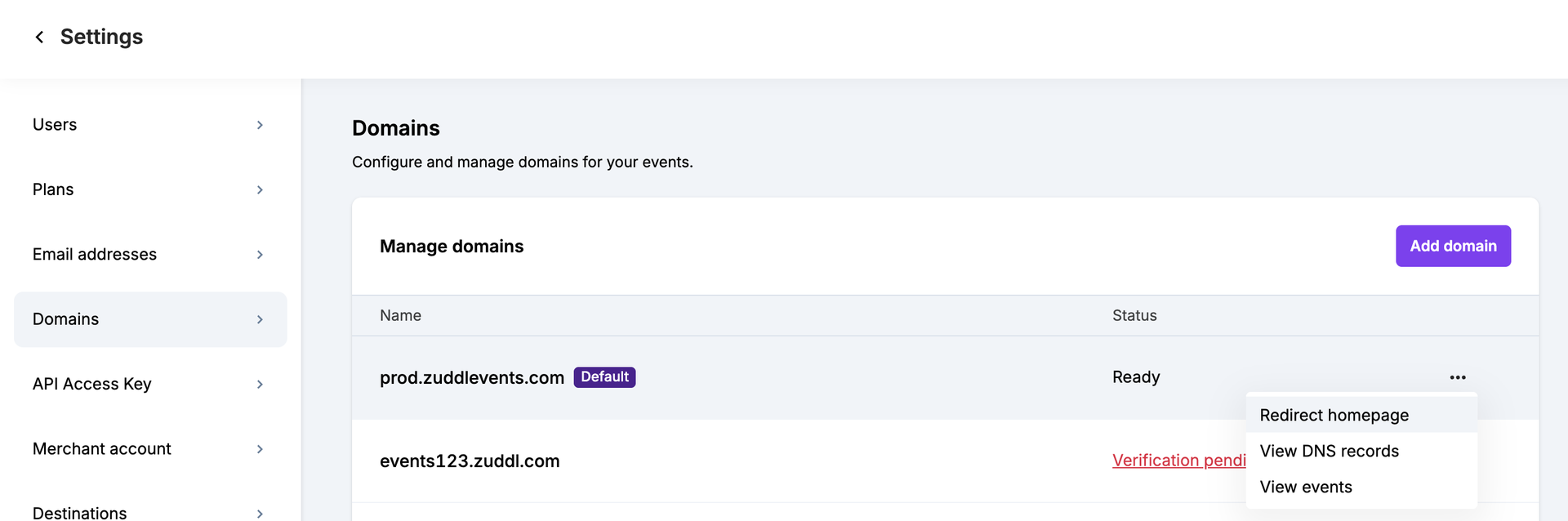
In the Homepage redirect panel, enter the destination in Redirect visitors to (for example,
https://www.example.com).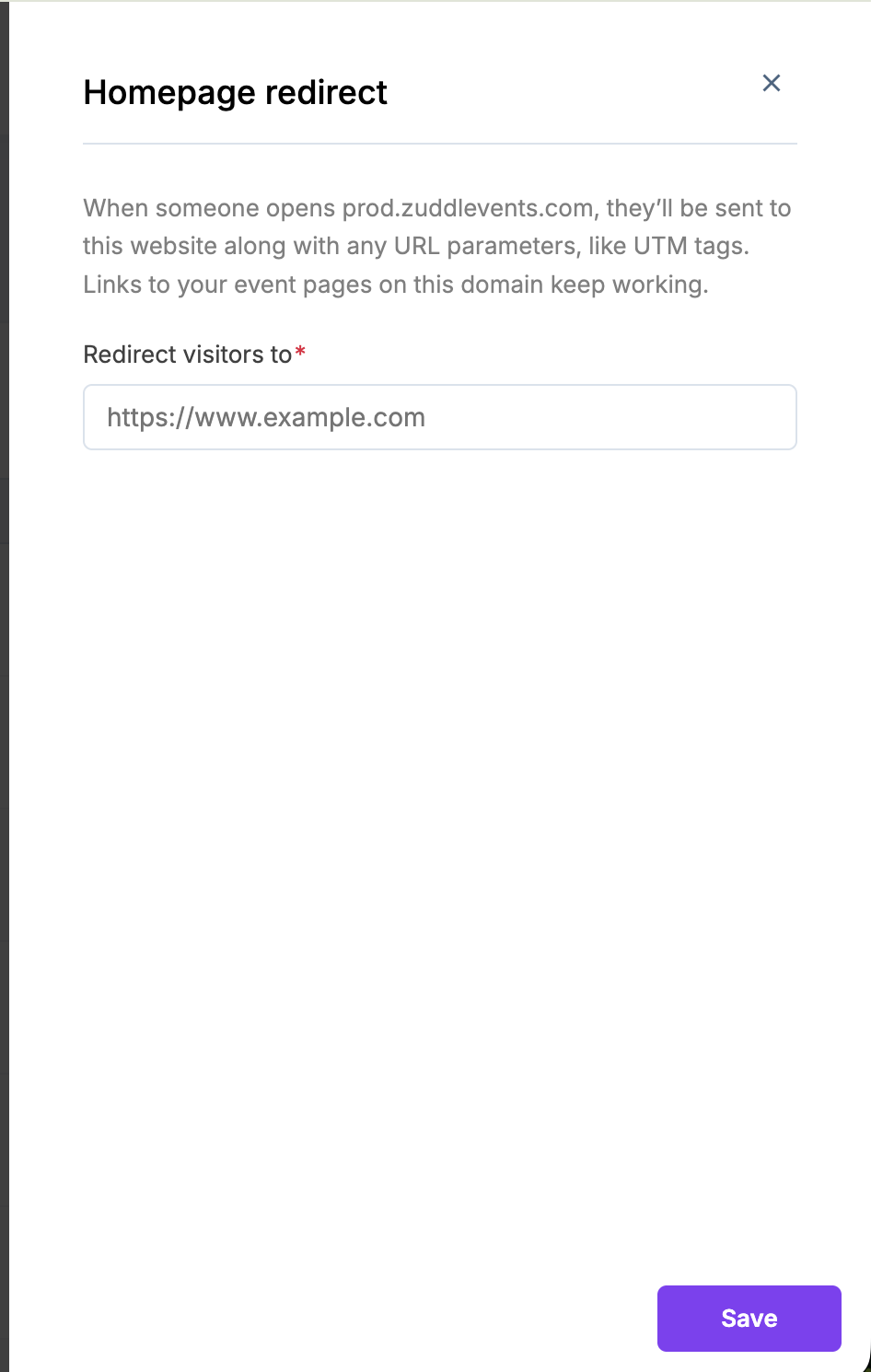
Click Save. You'll see a Homepage redirect saved confirmation.
What Happens Next
The domain row in Manage domains shows Homepage redirects to <your URL>.
Visitors who open the domain's homepage are sent to the destination URL, with their URL parameters (such as
?utm_source=linkedin) carried over.Event registration and landing page links on that domain continue to open the events as before.
Edit or Remove the Redirect
Go to Settings > Domains and click the ⋯ menu on the domain.
To change the destination, click Edit homepage redirect, update the URL, and click Save.
To turn it off, click Remove homepage redirect and confirm. The homepage stops redirecting.
Notes
Redirect homepage is greyed out: an event is set as the default event for this domain. Open that event's domain settings, turn off the Make this event default toggle, then try again.
Can't set an event as default for the domain: the domain's homepage is redirecting. Remove the homepage redirect in Settings > Domains first.
"Enter a valid URL" or "URL must start with http:// or https://": enter the complete address, including the protocol.
"URL contains characters that are not allowed": remove spaces, quotes, semicolons,
$, and curly braces from the URL.The option only appears on domains with Ready status. If the domain shows Verification pending, finish DNS setup first (use View DNS records).
Tip: Use this when you share your event domain in campaigns or signatures, so visitors who land on the bare domain reach a useful page instead of an empty one.