How to Configure Directory Sync
Last updated: November 5, 2025
Zuddl's directory sync feature allows your organization to synchronize users from your internal directory directly into Zuddl, ensuring accurate role assignments and access controls. Using directory sync, users and their roles are automatically kept up-to-date in Zuddl. If you have groups in your organization to assign users roles and manage accessibility, they can be automatically kept up-to-date in Zuddl by mapping a custom Zuddl attribute, "zuddl_role," for easy role-based access management.
For organizations that don't use groups to manage user roles, you can map a custom attribute to determine each user's role at sync time.
Prerequisite
The directory sync can be configured only if Single Sign-On (SSO) is configured for your Zuddl organization. Learn how to setup SSO for your Zuddl organization.
Setting up Directory Sync
The setup involves:
Enable directory sync in Zuddl
Mapping custom role attribute
Validating role values
Testing sync
Enable directory sync
To configure directory sync, click on the Configure directory option from the dropdown.
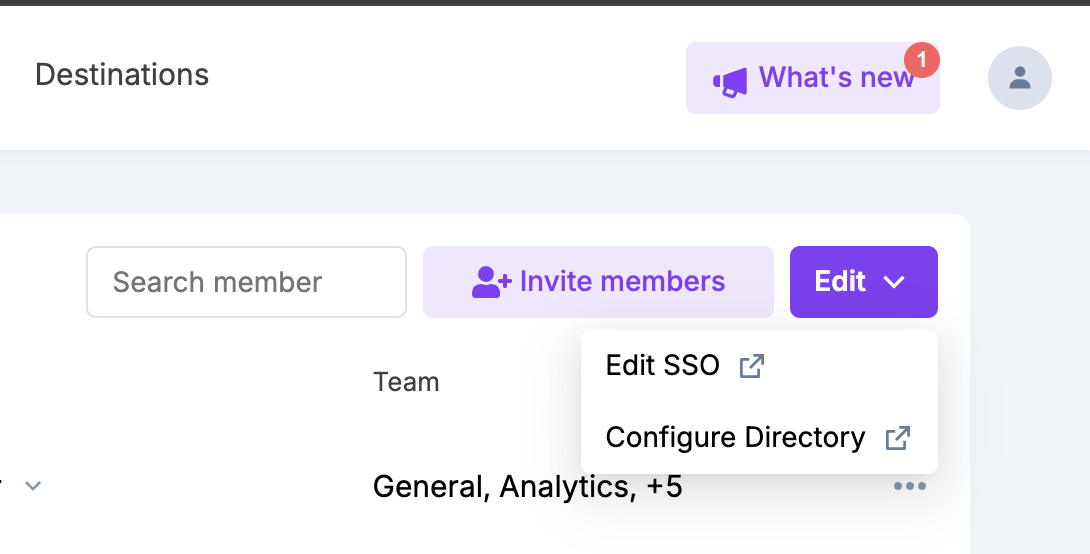
This option appears only after setting up SSO. Learn how to set up SSO for your Zuddl organization.
Select your directory provider from the list. You can also search for your IDP from the search bar.
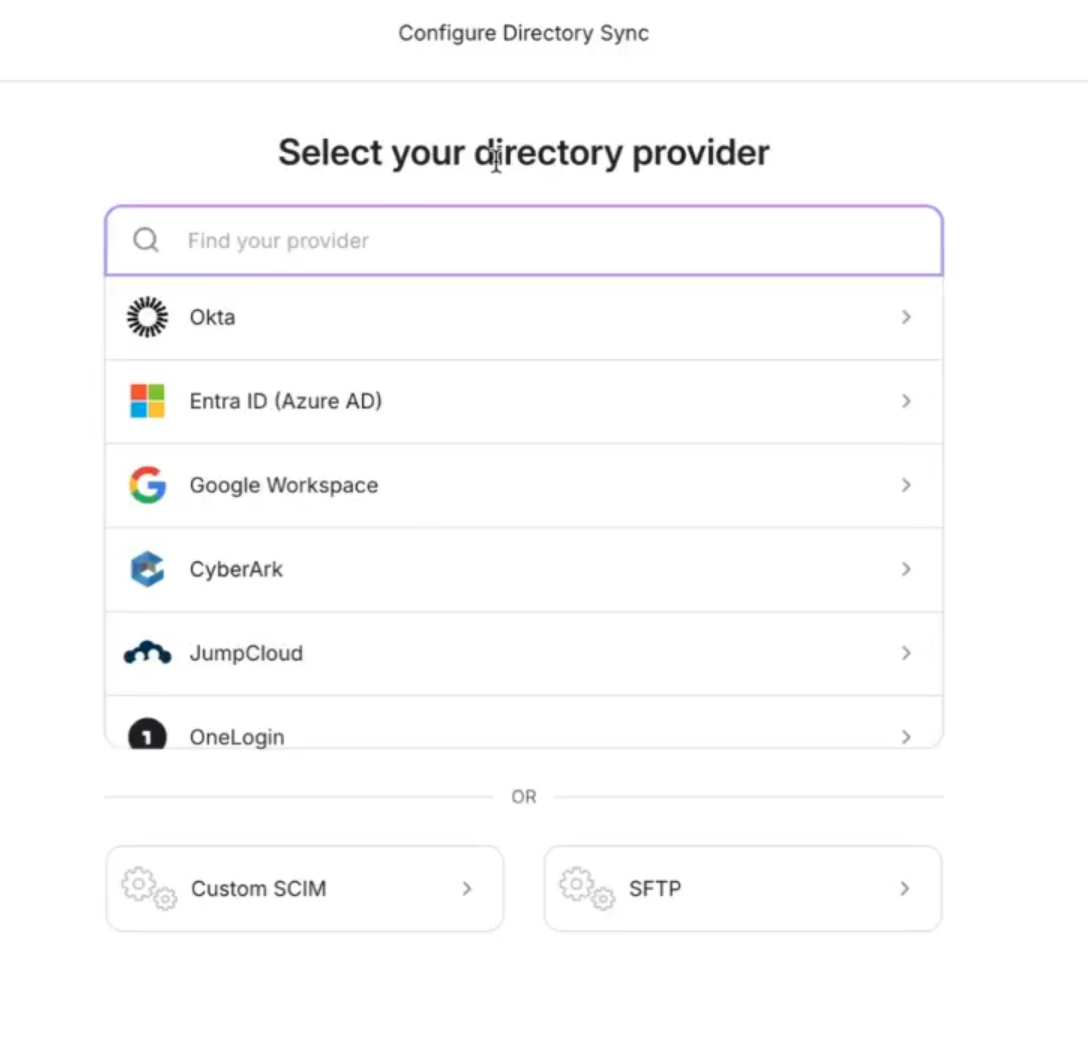
Follow the instructions to set up the directory sync.
If you don't have an application in your IDP for workOS directory, you can create a new SCIM application. You must use the same application you used to set up SSO.
Map the custom role attribute
In order for users to be given the required access, their roles must be mapped from your directory to Zuddl roles. For example, owner, admin, members organization-level roles.
If your IDP supports groups, you can assign users to groups and map them to specific roles on Zuddl. If your IDP does not support groups, you must add a custom attribute for each user in your IDP and map that custom attribute with a specific Zuddl role. This can be done in the 3rd step. You can choose the desired attribute name, but the attribute value must be the same as given in the table below.
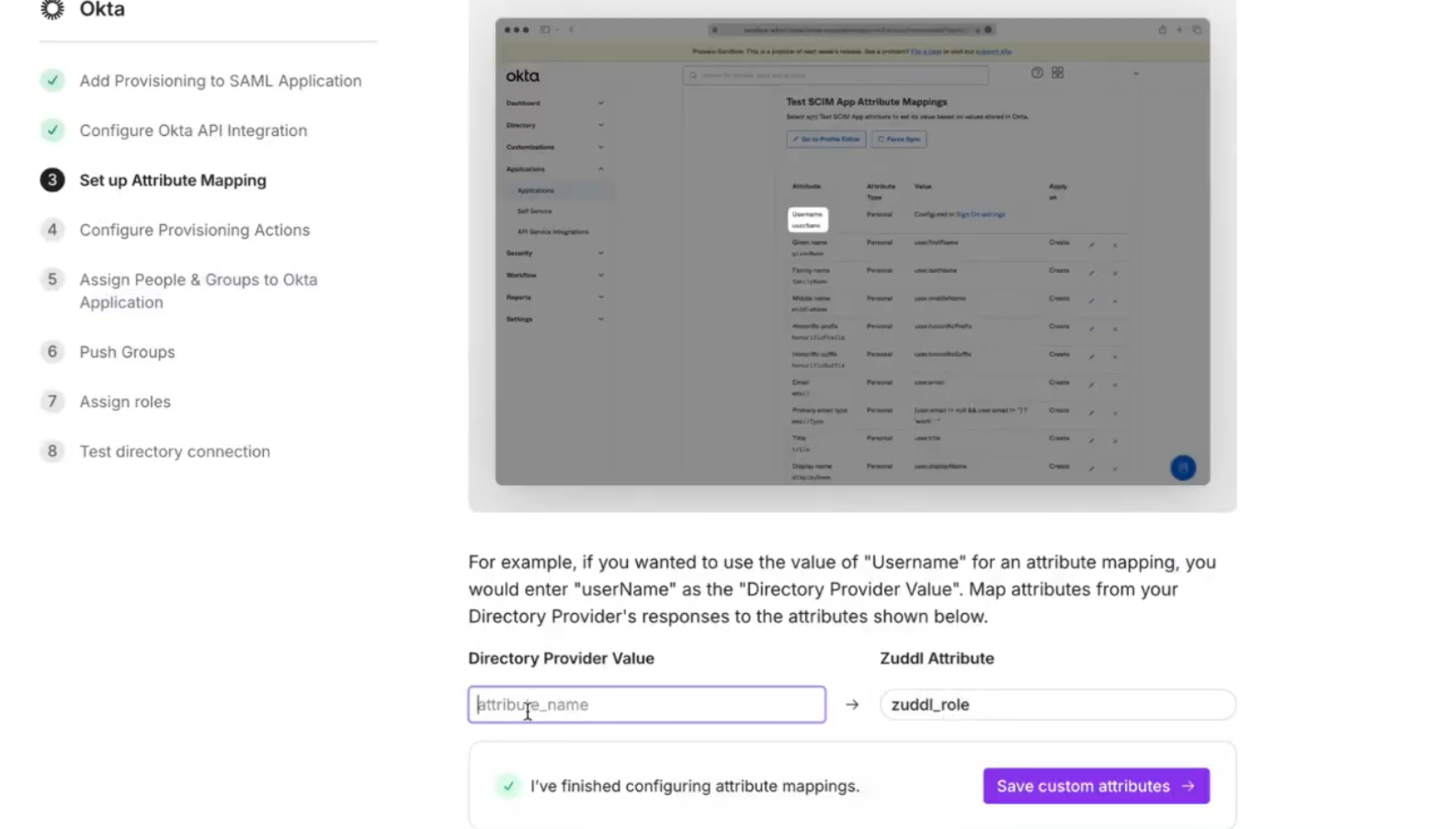
If you use both groups and custom_attributes, the role assigned by custom_attributes takes precedence.
Role Mapping and Supported Attribute Values
To assign roles, map a custom attribute in your directory to "zuddl_role" in Zuddl.
Users are considered attendees by default and are not added to the Zuddl organization.
The following values define user permissions:
Directory role | Attribute value | Definition | Zuddl role (Initial sync) |
Owner | owner | Full administrative access to all features and settings. | Admin |
Admin | admin | Administrative privileges, though not ownership. | Admin |
Member | member | Standard user permissions with setup limitations. | Moderator |
Attendee | attendee | Event access only, no setup permissions (default role). | Not shown in the Zuddl role list |
Namespace to be used for the custom attribute:
urn:ietf:params:scim:schemas:core:2.0:UserPersistent roles
The above mapping for owner, admin, and member is only for the initial sync. After the initial sync, any changes to these roles will remain stable in future syncs and can only be adjusted through the Zuddl dashboard.
Removing users
Users synced from your directory cannot be removed through the Zuddl dashboard. Removing the user from your IDP will also remove them from the member's list in Zuddl.
Troubleshooting
If you've added a user from your IDP SSO and are not showing on the setup side, remove the user and add them again
Directory disconnected
If directory sync is disconnected, Zuddl will retain all previously synced users, allowing for role changes and user management through the Zuddl dashboard from that point forward.
Once the directory is successfully connected, it shows the following screen
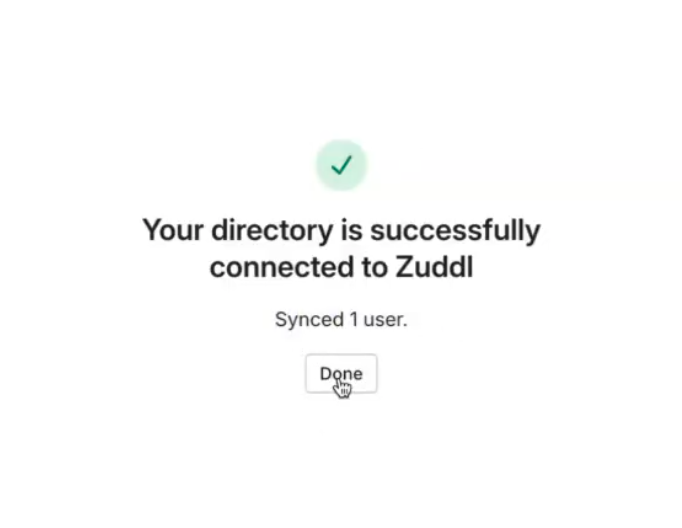
The added user appears on the members list for your team in Zuddl
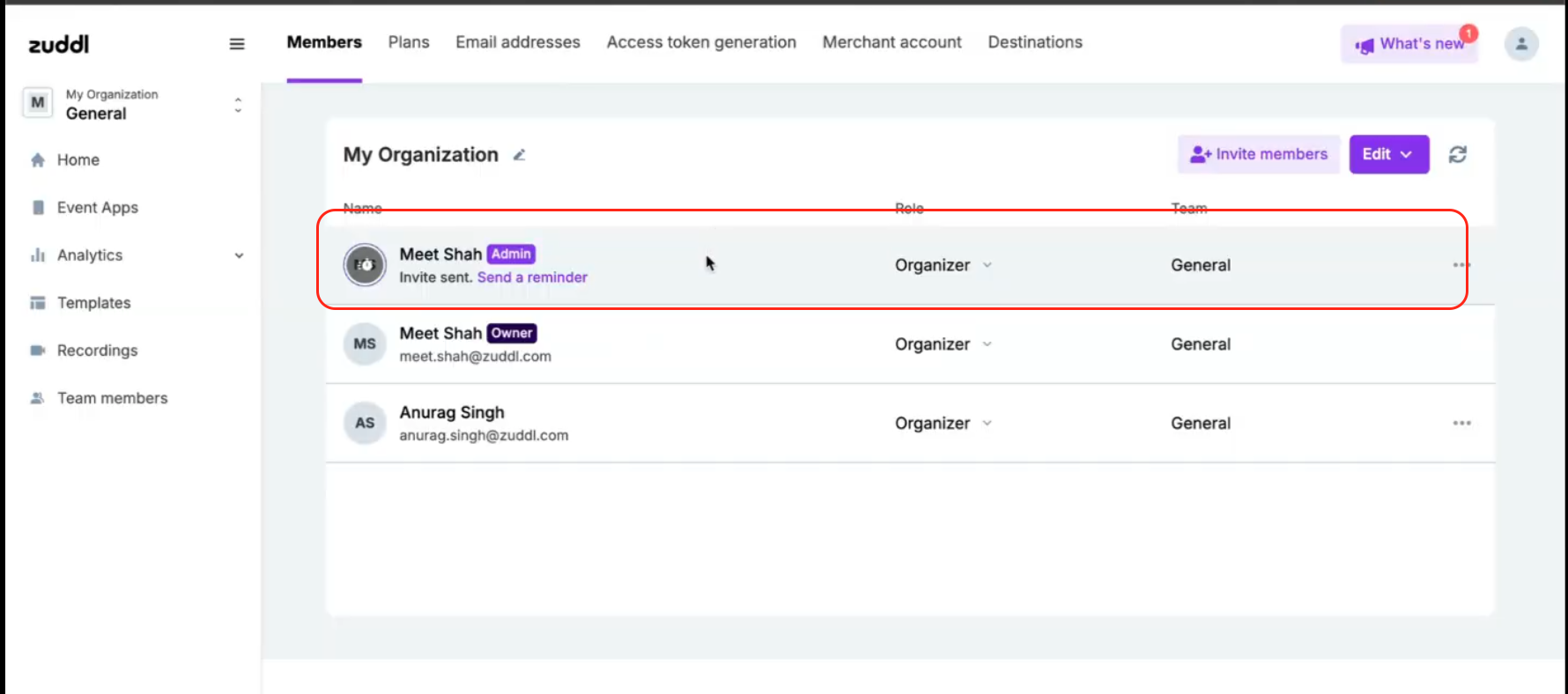
If some users were added to your directory application before configuring directory sync and are not showing up on Zuddl, try removing and adding them back to your directory app.
Validate role values
Ensure that each user's role aligns with one of the supported Zuddl values.
Users with unsupported values will default to the "attendee" role.
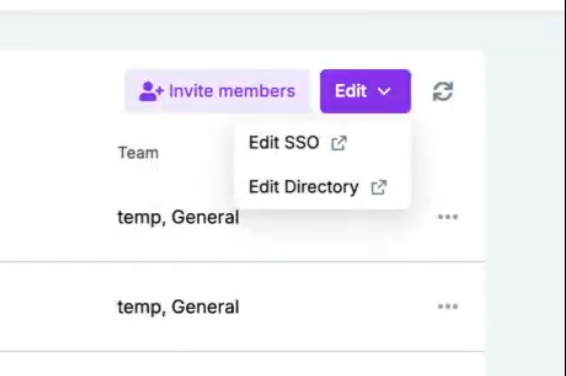
After the directory settings are complete, the edit dropdown button shows the following options:
Test Sync
After mapping, run a test sync to confirm accurate user and role assignments. You should also review synced users in the Zuddl admin interface to confirm roles are correctly mapped.
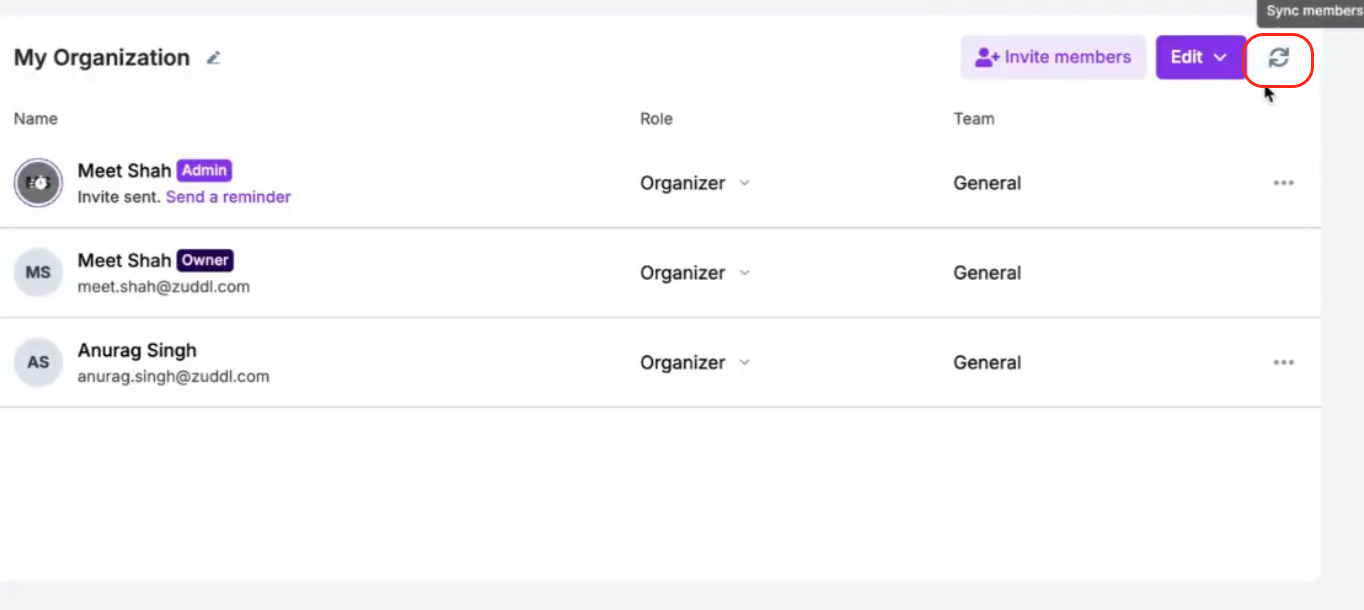
Syncing members
If the syncing of members has not happened from your IDP, you can click the sync button here. Please only use when some members that you added do not appear here.
More options for SSO members
The more option for members that were added via SSO only shows the Manage team access option.
Troubleshooting: Role mapping verification
Verify the role mapping to ensure all role values match supported options and at least one of the two role assignment methods - group based or custom attribute based is configured.
For further assistance, please reach out to Zuddl's support team at support@zuddl.com