Organization-level Roles in Zuddl
Last updated: May 20, 2026
Some user roles can be assigned at Zuddl organization-level which has access privileges at a Zuddl account level.
Organization roles
The table below shows the different organization-level roles and what they signify:
Role | Description | Actions/Behavior |
Owner | The Owner is the person with absolute control over the Zuddl organization account. There can be only one owner for an organization. |
|
Admin | Admins are organization members who can be assigned by the owner or by other admins. |
|
Organization member | Can be given an event-level role like organizer or moderator, assigned by an admin or the organization owner. |
To learn about the permissions for each role, refer to the permissions guide.
Creating a Custom Role
Zuddl allows organizations to create custom roles to define access to a feature at a granular level — beyond the default roles (Owner, Admin, Organizer, Moderator). This gives teams the flexibility to match platform access with real-world responsibilities.
Benefits of a custom role
Unlike the pre-defined roles, which are non-customizable, you can configure a custom role to define who can view or what action a team member can take in your Zuddl organization — feature by feature.
You can:
Grant full access or restrict access to specific Zuddl features
Assign these custom roles when adding users to teams or existing members of the organization. For example, you can use roles like “Designer” or “Marketing Manager” and modify them as needed.
Pre-defined role Vs custom roles
Role Type | Can it be edited? |
Pre-defined role (Admin, Organizer, Moderator, Moderator Admin) | No |
Custom role | Yes |
Access types
There are two types of access privileges:
- No access: The feature will not be visible to the user at all
- Full access: User can view, create, edit and delete within that feature
Configuring a custom role
Setting up a custom role involves the following steps:
Create a role
Assign a role
1. Create a role
Only organizers, owners, and admins can create custom roles.
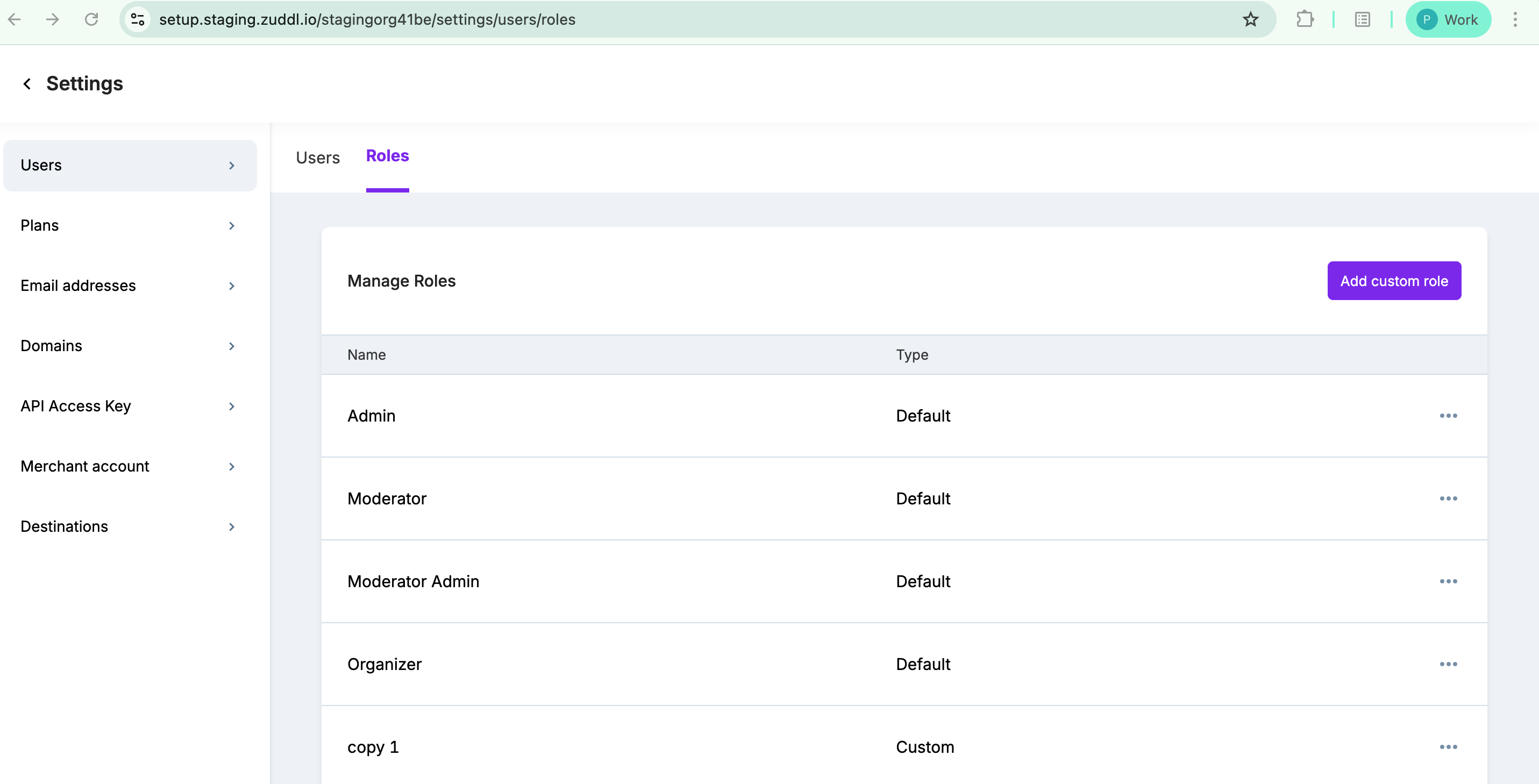
On your dashboard, go to Settings > Users.
Click the Roles tab.
Click Add custom role.
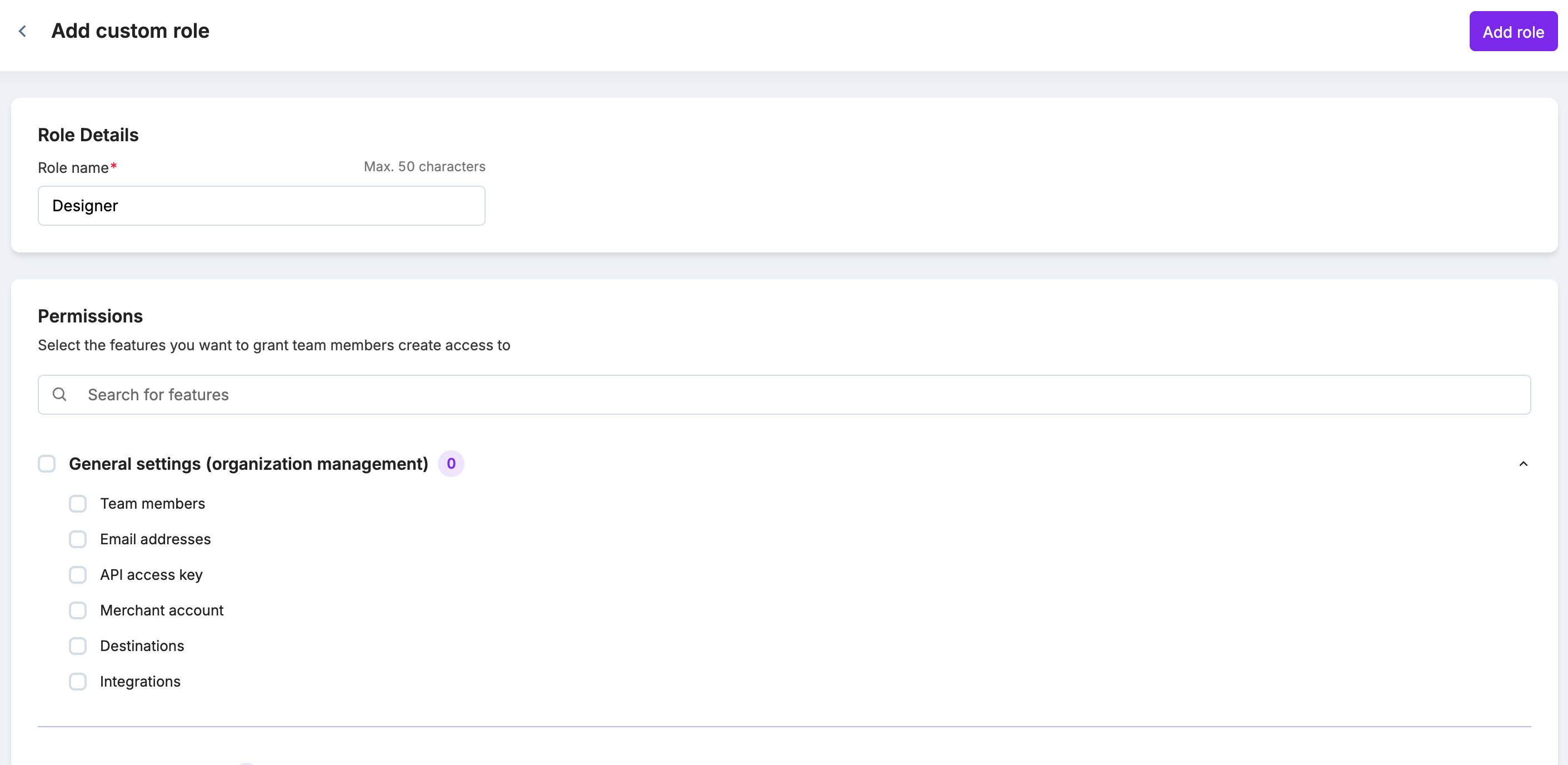
Under Role details, enter Role name.
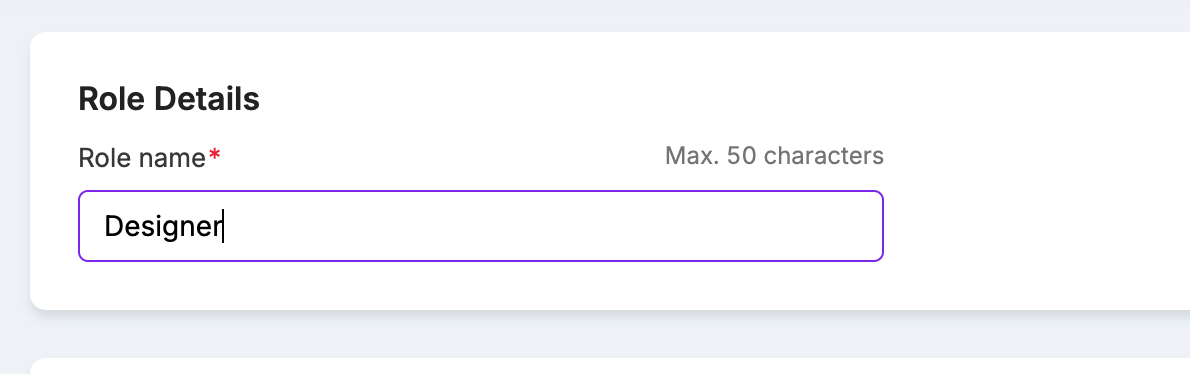
The role name must be unique and should not match any existing roles.
Set permissions for each feature. To do so, select the checkbox for each feature. Refer to the cross-dependencies article to view relationships between features.
Click Add role to save the role.
The added role is now visible on the list.
2. Assign a custom role
You can assign a role when adding a user to a team or when you are editing a user's role in an existing team. The default roles in Zuddl are:
Admin
Moderator admin
Organizer
Moderator
To assign a role:
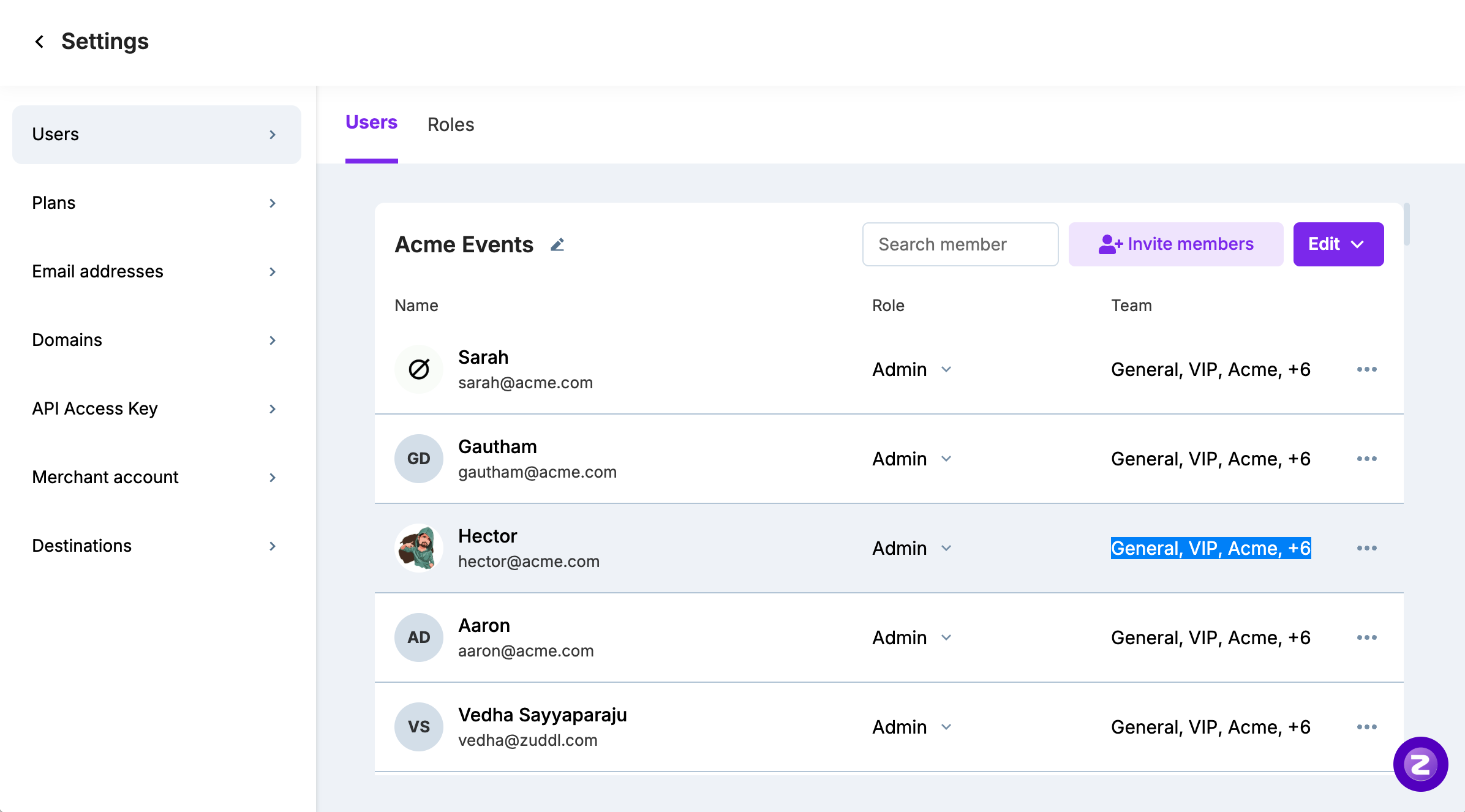
Go to the Users tab.
Add a new user or edit an existing one.
Under the Role column, click the dropdown to choose either a default role or a custom role.
Managing a role
You can create a role based on your organization's requirements and later edit the permissions accordingly.
Editing a role
You can edit the permissions for a particular role at any time. The permission updates made to a role take effect immediately for all users with that role.
How permissions change upon specific actions
- If you've updated the permission for a role, it takes effect immediately
- If access to the base/parent feature is removed, dependent features are disabled automatically
Deleting a role
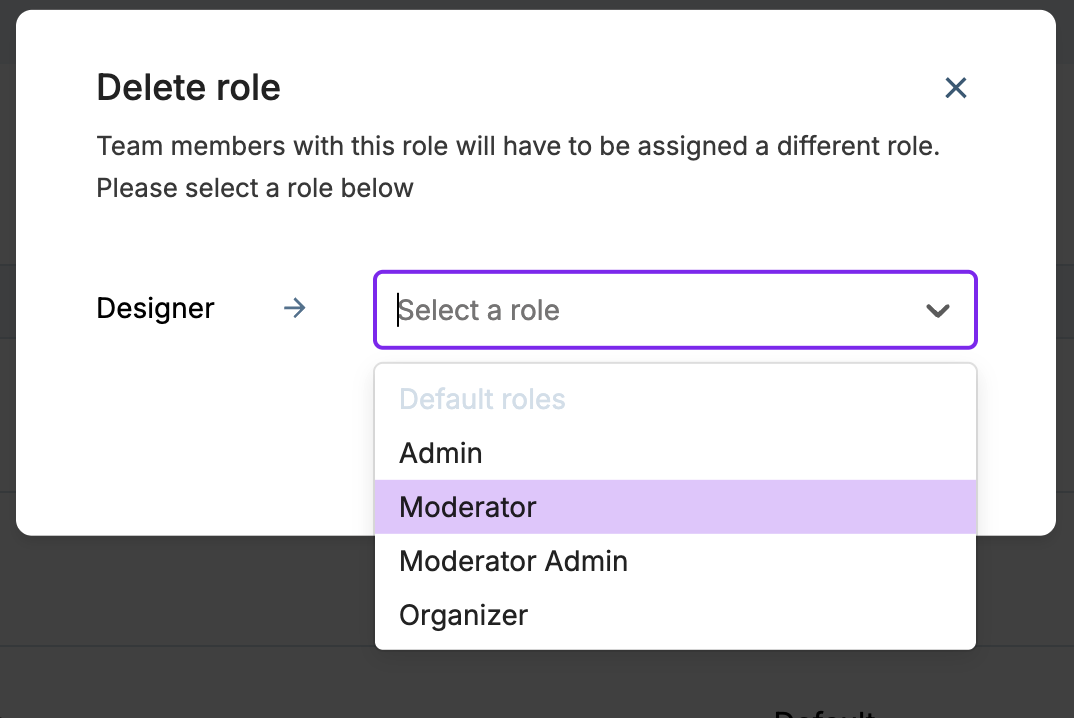
Deleting a role can be done only if no user is assigned to it.
If users are assigned to a role, you’ll need to reassign them to a different role before deleting the role.