AI Fields for Smart Tables
Last updated: August 14, 2026
Availability: Beta — requires AI flag to be enabled for your organization. If you haven't accepted the AI consent popup in your workspace, connect with Support and they can help you out.
What This Does
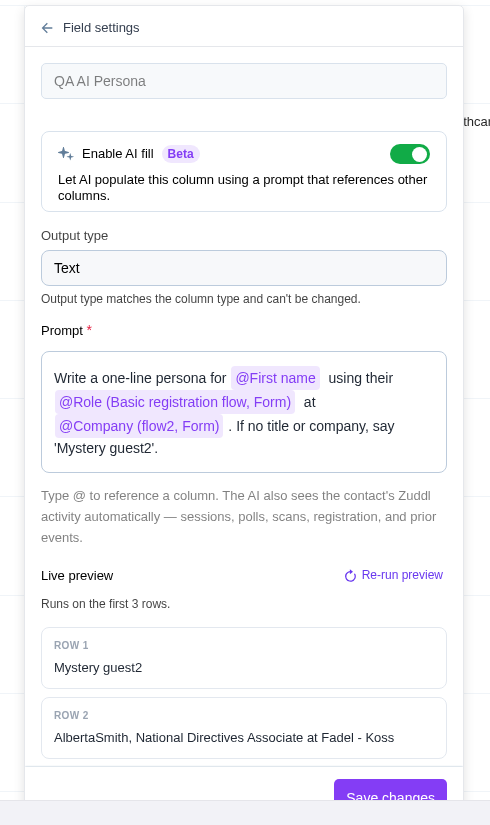
AI fill lets you add a Smart Table column whose values are generated by AI from a prompt you write. The prompt can reference other columns in the same table using @ mentions, so the AI works from each row's own data — for example, turning a job title and company into a one-line persona, or classifying a registrant's industry into a fixed set of options.
AI fill is not a separate column type. It is a setting you turn on for a normal column, and the column keeps its own type — that type is also the output type the AI will produce.
Alongside the columns you reference, the AI automatically sees each contact's Zuddl activity — sessions, polls, scans, registration, and prior events. You can write prompts about behaviour without adding those as columns first.
Before You Begin
AI must be enabled for your organization. If it is not, contact your Zuddl representative to have it switched on.
You need the Organizer role on the table. Contributors and people viewing a shared table can see AI-filled values but cannot configure or rerun them.
The column must be one of the supported types: Text, Long text, Number, Date, Date & time, URL, Single select, or Multi-select.
The columns you plan to reference in the prompt should already exist in the table and contain data.
Steps
Add a new AI-filled column
Open your event and go to Smart Tables in the left sidebar, then open the table you want to work in.
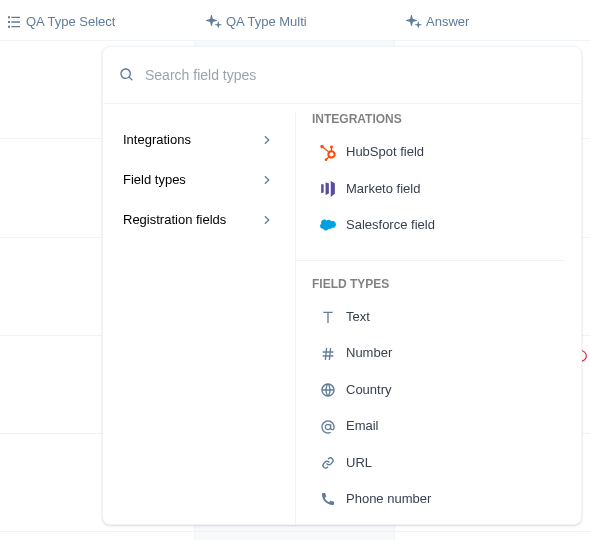
Scroll to the right end of the grid and click + Add column.
Choose a supported field type (for example, Text) and enter a name for the column.
Turn on Enable AI fill.
In the Prompt box, describe what the AI should produce for each row. Type
@to insert a reference to another column and pick it from the list — for example: Classify this contact's industry as one of: Technology, Healthcare, Finance, Education. Use @Job Title and @Company.Wait for Live preview, which notes that it “Runs on the first 3 rows.” It fires a couple of seconds after you stop typing; you can also click Run preview (Re-run preview once it has run) to trigger it immediately.
Check the output shown under ROW 1, ROW 2 and ROW 3. If it is not what you want, edit the prompt — the preview reruns automatically.
Click Add column.
Add column stays disabled until a preview of the current prompt has run successfully. If you edit the prompt after a good preview, the button disables again until the new preview lands.
Turn on AI fill for an existing column
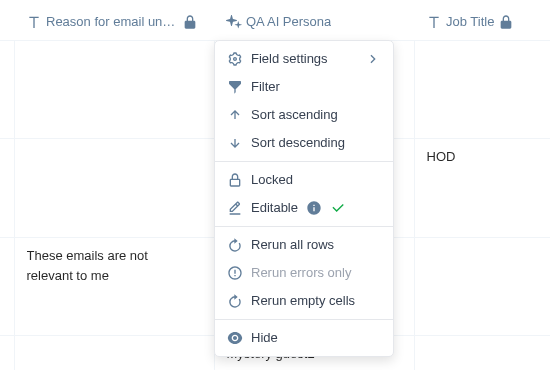
Hover the column header and click the … menu.
Choose Field settings.
Turn on Enable AI fill and write your prompt, exactly as above.
Wait for the preview to succeed, then click Save changes.
Enabling AI fill on an existing column starts a fill across every row in the table. Any values already in the column are overwritten, except cells you edited by hand — those are marked as manual edits and are skipped.
Write prompts for Single select and Multi-select columns
Add the column as Single select or Multi-select and define your options first.
Turn on Enable AI fill and name the allowed options in the prompt so the AI has them in writing as well.
Run the preview. Every previewed row must return a value that matches one of your options — if a row comes back as Not a valid option, tighten the prompt or add the missing option before saving.
What Happens Next
Cells fill in live as the run progresses.
Large tables fill progressively rather than all at once. You can keep working in the table while a run is in progress.
When a column you referenced changes for a row, we autoupdate the AI Output accordingly.
Anyone with access to the table - including people using a shared table link — sees the generated values. The prompt and AI controls are visible to organizers only.
Rerun options
Reruns are available to organizers only. Open the AI column's header menu to reach them.
Rerun all rows — regenerates every row in the column, except cells that were edited by hand.
Rerun errors only — retries just the cells whose run failed. The number of failed cells appears in brackets; with no failures the option is greyed out.
Rerun empty cells — fills only the rows that currently have no value, leaving existing values untouched.
Rerun a single cell — hover the cell and click the circular Rerun cell arrow at its right edge. If that cell was edited by hand, confirm Replace this manual edit? — a single-cell rerun replaces a manual edit, unlike the column-wide reruns.
Reruns fill in live, so you can keep working in the table while one is in progress. To apply a changed prompt to rows that already have values, edit the prompt in Field settings and save.
Troubleshooting
Many rows show “Needs @<column>”. The column your prompt references is empty for those registrants. Reopen Field settings and check the reference points at the flow that actually holds the data.
A preview row says “Not a valid option”. On a Single select or Multi-select column the AI returned something outside your option set. Name the exact options in the prompt, or add the missing option to the column.
Cells show a red warning icon. The run failed for those rows. Hover the icon to read the reason, fix the underlying issue, then use Rerun errors only.
A rerun skipped some rows. Column-wide reruns deliberately skip cells that were edited by hand. Rerun those cells individually and confirm the replace prompt.
A value looks out of date. Rerun the column, or rerun the individual cells, to regenerate against the current data.
You cannot see the AI controls. Either AI is not enabled for your organization, or you are not an organizer on this table. People viewing a shared table never see prompts or rerun controls.
Add column or Save changes stays disabled. A successful preview of the current prompt is required. If the preview failed, click Re-run preview; if it keeps failing, simplify the prompt.
Notes
AI fill is currently in Beta.
Date & time previews and values are shown in the event's timezone.
A prompt can only reference columns that exist in the same table. If you need a field that is not there yet, add it as a column first.
When an event has several registration flows, the same field name can appear once per flow. The
@picker labels each one with its flow and source — for example @Role (Basic registration flow, Form) — so you can pick the right one.
Rows where a referenced column is empty show Needs @<column> instead of a value. This does not block you from saving the prompt.
Editing a cell by hand overrides the AI value and any bulk reruns skip that cell. If you need to fill it with AI again, you can use the cell level rerun to run just that cell.