Smart Fields
Last updated: October 7, 2026
Availability: Beta — requires Smart Tables to be enabled for your organization.
What This Does
Smart Fields are Smart Table columns that fill themselves in. For each field you choose where its data comes from — fields in your connected CRM (Salesforce, HubSpot or Marketo) and/or Zuddl enrichment — and the order to check them in. When you add a smart field to a Smart Table, Zuddl looks up every row and fills the cell from the first source that returns a value.
There are eight smart fields, in two groups:
Person: Title, LinkedIn URL, City, Work email
Company: Industry, Employee count, Revenue range, Company LinkedIn URL
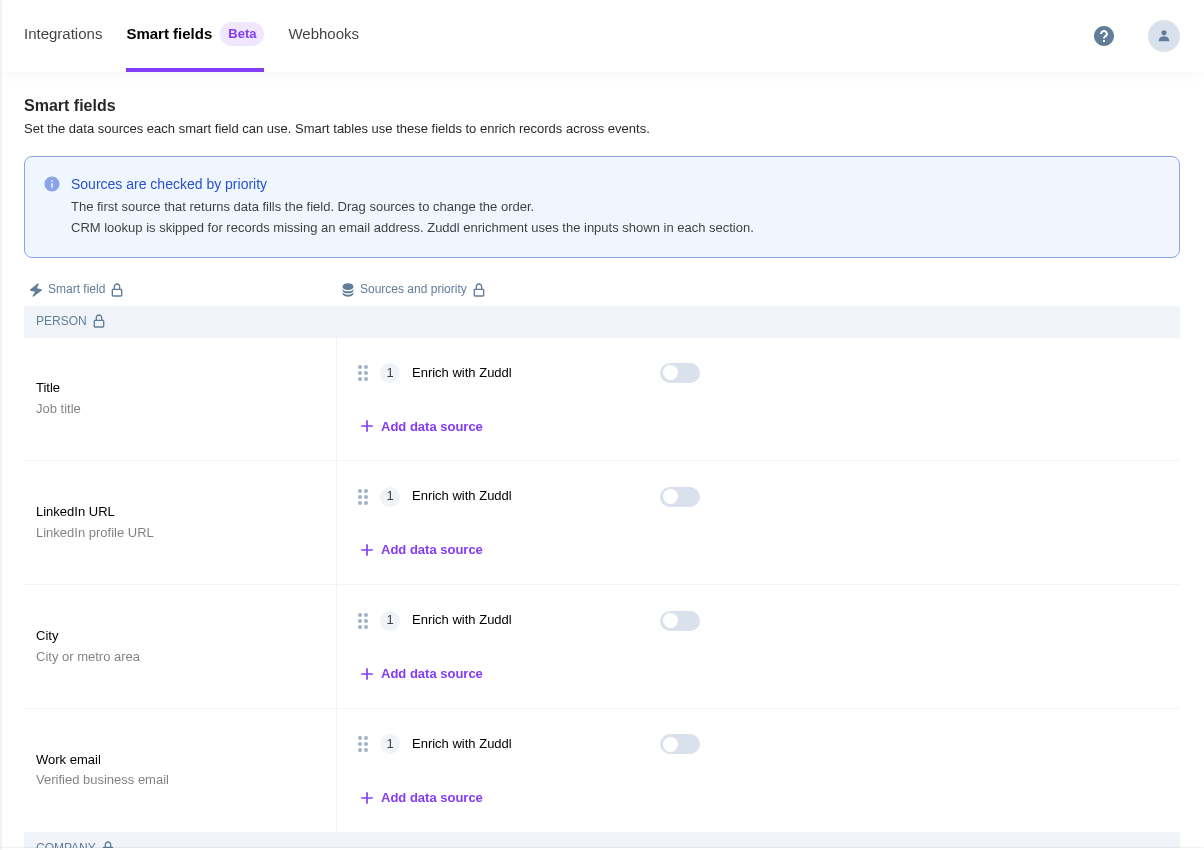
Setup has two parts. First you set the sources once for your organization under Integrations → Smart fields. After that, anyone building a Smart Table in any event can add the fields as columns.
Before You Begin
Smart Tables must be enabled for your organization. If you don't see a Smart fields tab under Integrations, contact your Zuddl representative.
To change smart field sources you need permission to manage integrations for the organization. Users who can only view integrations see the page, but cannot add, reorder or remove sources.
To use a CRM as a source, the Salesforce, HubSpot or Marketo integration must already be installed and enabled under Integrations. Zuddl enrichment needs no integration.
Steps
Part 1 — Set the sources for each smart field (one-time, per organization)
From your organization dashboard, click Integrations in the left sidebar.
Open the Smart fields tab (marked Beta) at the top of the page.
Find the field you want to set up, for example Title, and click + Add data source in its row.
In the panel, choose the CRM tab (Salesforce, Hubspot or Marketo), then search for and select the CRM field to read from. Fields are grouped by CRM object, for example CONTACT, LEAD or ACCOUNT. A field already used in that row shows In use.
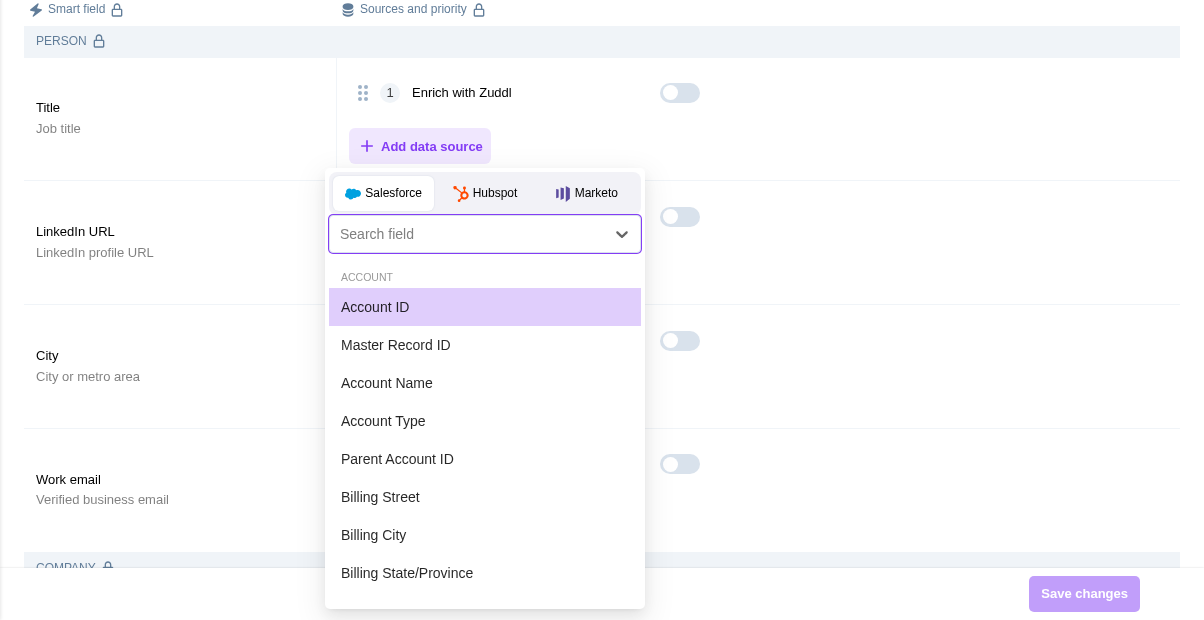
The source appears as a numbered chip, for example Contact · Title. Repeat for any other CRM sources you want for this field.
To also use Zuddl's own data, turn on the Enrich with Zuddl toggle in the same row.
Set the priority by dragging the chips with the handle on the left. Source 1 is checked first.

To change a CRM source, click its chip and pick a different field. To remove one, hover the chip and click ×.

Repeat for every field you want to use, then click Save changes at the bottom right.
In the Save changes? dialog, click Confirm. You'll see Smart fields saved successfully.
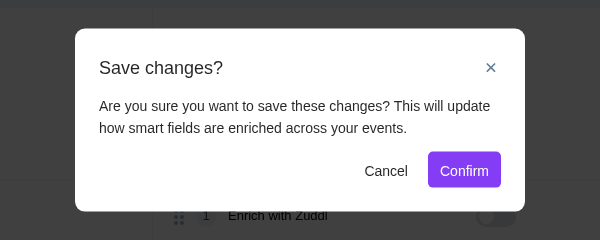
Saving changes how smart fields are enriched in every event in your organization. If you switch tabs or leave the page before saving, Zuddl warns you that unsaved changes will be lost.
Part 2 — Add a smart field to a Smart Table
Open your event, go to Smart Tables in the left sidebar, and open the table you want to enrich.
Click + Add column at the right end of the column headers. You can also open a column's header menu and choose Add column to left or Add column to right.
Under SMART FIELDS, open Select company column and choose the column that holds each person's company name, for example Company.
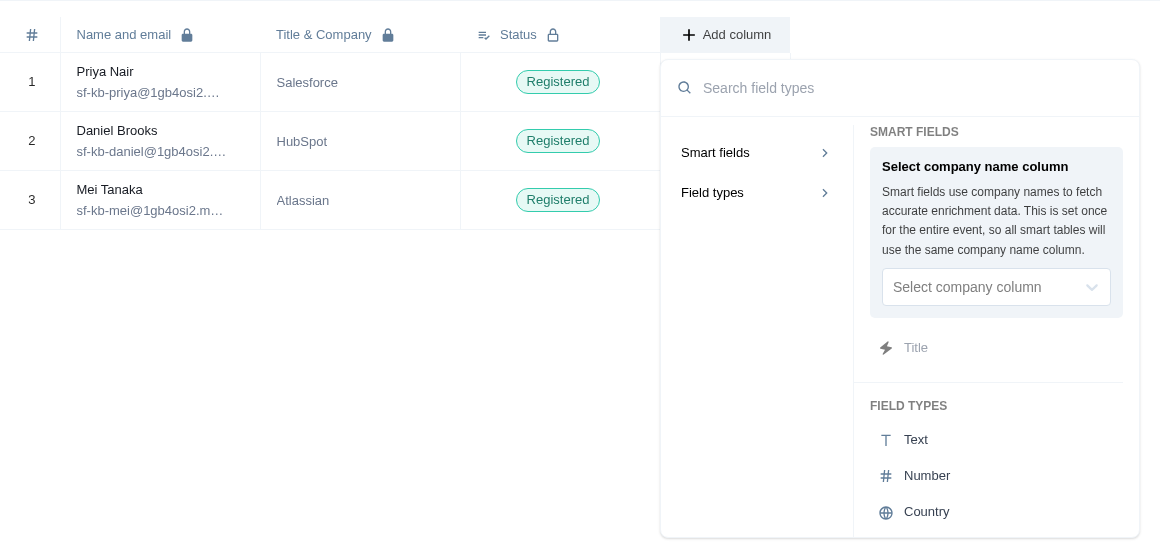
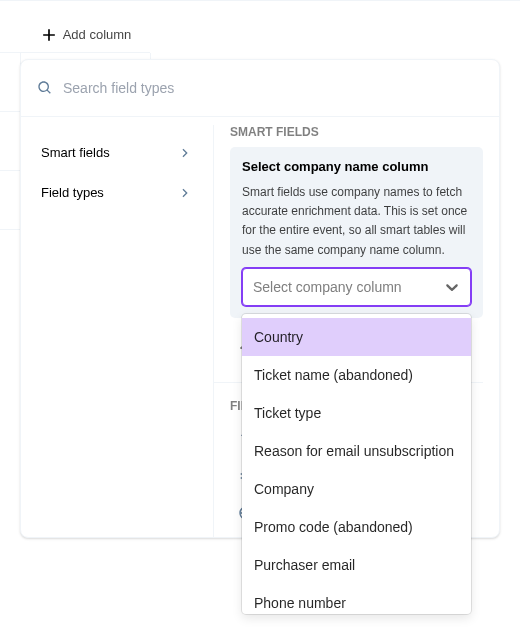
Click the smart field you want to add, for example Title. The column is added at once and the panel closes.
You choose the company name column once per event, and every Smart Table in that event uses it. Smart fields stay greyed out until it's set. Only text and select columns can be chosen, so first name, last name and email don't appear in the list.
What Happens Next
Zuddl starts filling the new column in the background. A spinner shows in each cell still being looked up, and values appear without a page refresh.
Each filled cell shows an icon for the source that supplied it (your CRM's logo or the Zuddl mark). Hover the icon to see, for example, Sourced from Salesforce. Different rows can be filled from different sources.
When a row's email, name or company changes, that row is looked up again automatically.
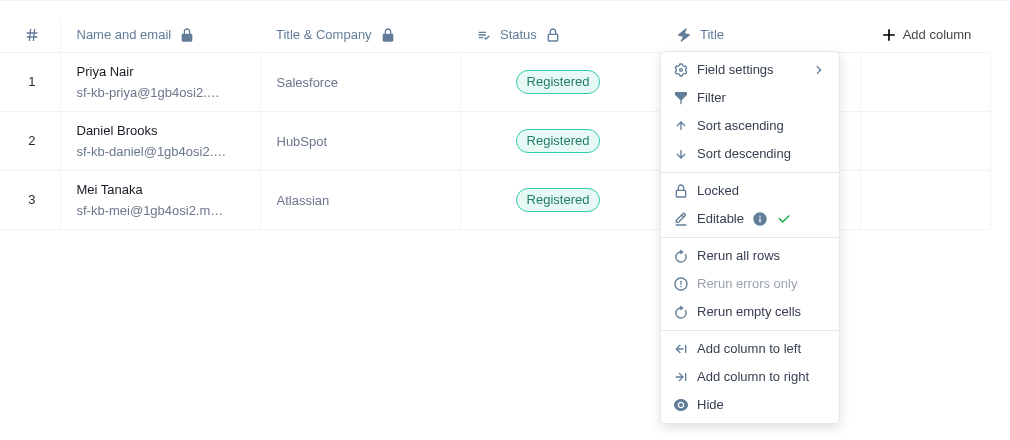
To fill cells again yourself, open the column's header menu and choose Rerun all rows, Rerun errors only or Rerun empty cells. Reruns apply only to the rows in your current filtered view.
Notes
CRM sources look records up by email. If a row has no email, the CRM sources are skipped for it.
What Zuddl enrichment needs: Person fields need the email address, or first name, last name and company. Company fields need the company name or a work email (personal email domains such as Gmail don't count).
Limits: each field can have up to 5 sources, and Enrich with Zuddl counts as one of them. Each smart field can be added to a table only once; a field already in the table shows In use.
What the cell messages mean:
Needs input — the row is missing the email, name or company needed for a lookup.
No data found — none of the sources returned a value.
Request failed — the lookup errored. Use Rerun errors only.
Field Setup incomplete — the field has no source turned on. Finish Part 1 for it.
Also good to know:
Manual edits win. You can type over a smart field cell. It is then marked as manually edited and skipped by reruns.
Changing the company column later: Zuddl asks you to confirm, because the change applies to the whole event. Values already filled stay as they are unless you choose Re-enrich this table or Re-enrich all tables.
Smart Fields is currently in Beta.