Smart Tables
Last updated: July 14, 2026
What This Does
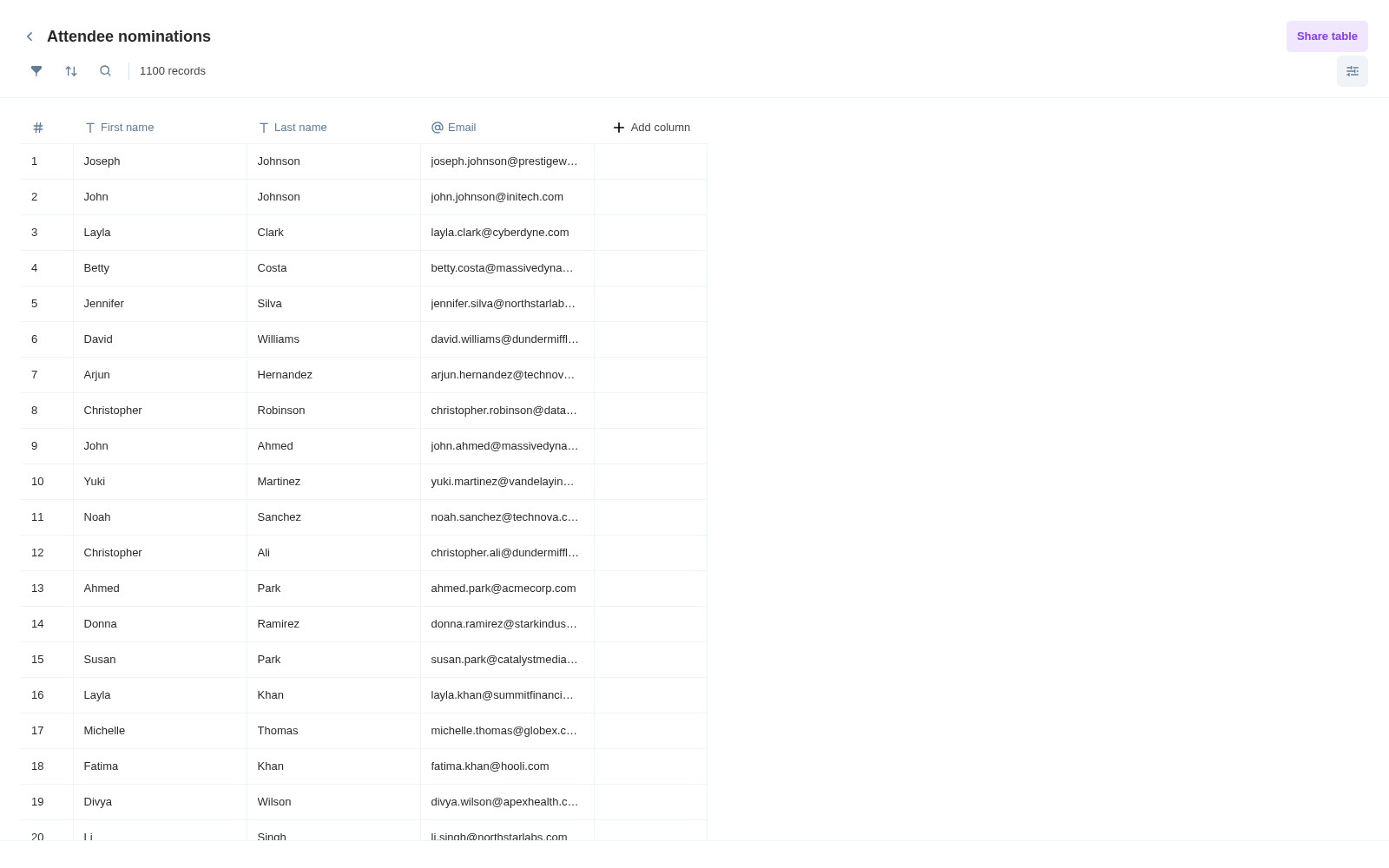
Smart Tables let you share a controlled view of your data with people outside your Zuddl account so they can review, edit, and work on it with you. For nominations, this means a sales team can nominate accounts and a manager can shortlist them, all in one place, instead of passing spreadsheets back and forth over email. You decide exactly which rows and columns each person sees and what they are allowed to edit.
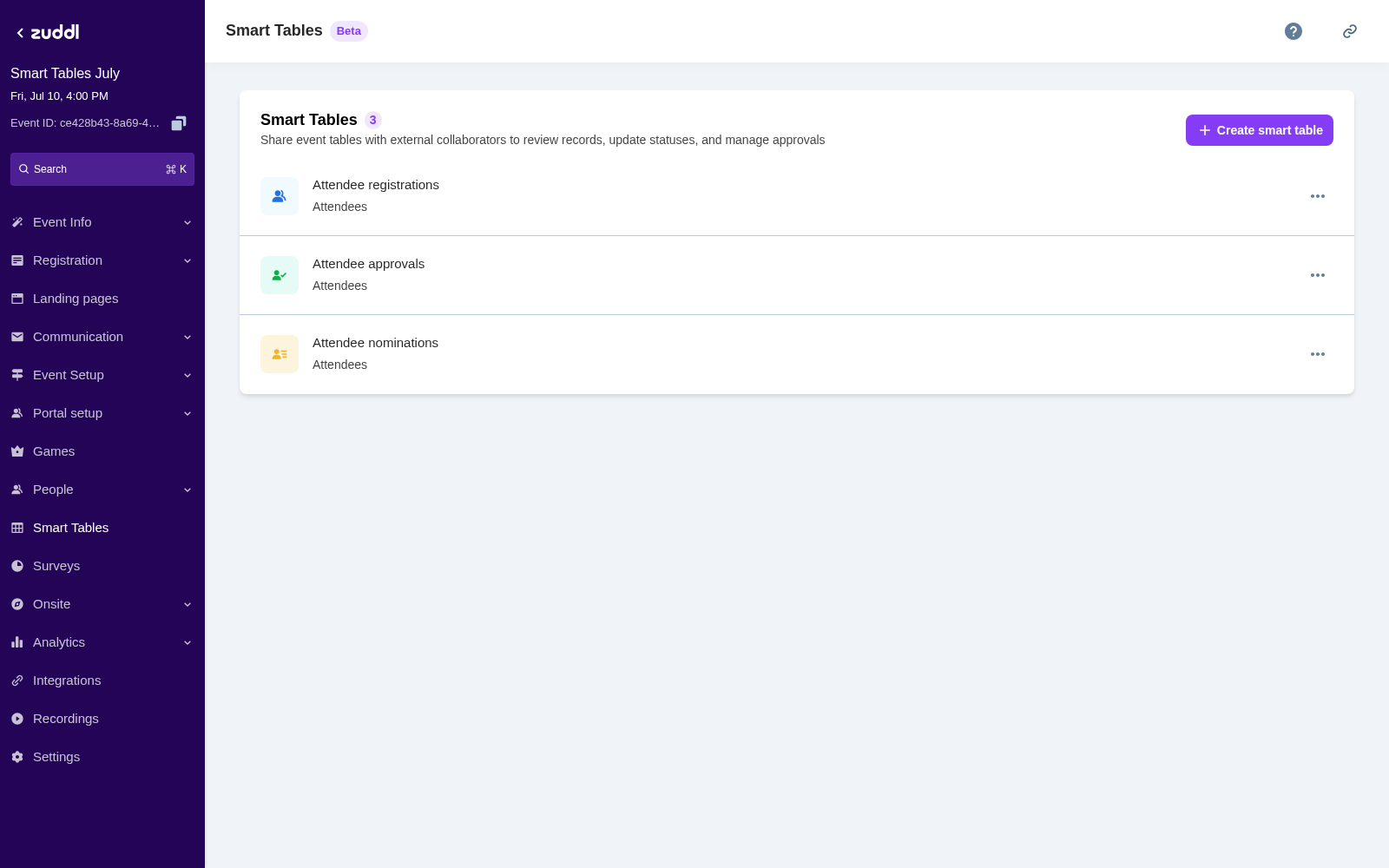
This article covers how an organizer creates and manages Smart Tables built on the Nominations table. Smart Tables can also be built on your Approvals and Registrations data, which are covered in their own articles.
Smart Tables is currently in beta and is being continuously improved.
How Smart Tables work: A Smart Table is an optionally filtered view built on top of the main data source such as attendees, nominations and the likes. The data lives in the main list, not in the view, so any change made in a Smart Table flows back to the master and shows up in every view that includes that row.
Columns can be locked or editable. Fields you create yourself can be locked or unlocked for your external collaborators, so you control exactly what they can change.
Note: Only net-new fields you create on the table can be made editable for collaborators. Fields that come from Zuddl, including registration fields and connected integration fields, always show as locked. You can hide them, but you cannot make them editable.
Steps
You can create a Smart Table from two places:
Open the Smart Tables section in the left navigation sidebar and select [+ Create Smart Table]; or open the Nominations tab and select [Create Smart Table] in the top bar.
You can currently create smart tables on top of the nominations list and very soon, this will be available for the Attendees Tab and Approval Requests Tab.
Set a name for the table, apply any row filters, and choose which columns to include and whether they are editable.
Use the Manage Columns option to control what the view exposes. For each column, set its Visibility (whether the column shows in this view — hiding a column does not remove its data) and its Permission (whether collaborators can edit the column — only fields you create yourself can be set to editable).
To add a new field, choose its type: Text, Email, Phone Number, URL, Country, Select (Dropdown), Multiselect, Number, Date, or Date time. A field's type cannot be changed after it is created.
To show statuses in the view, use Manage Columns to add the Status column. Setting up custom statuses is covered in its own article.
Apply filters as needed using Equals, Contains, or Does not contain. Any filter you apply as the organizer is global and applies to everyone you share the view with.
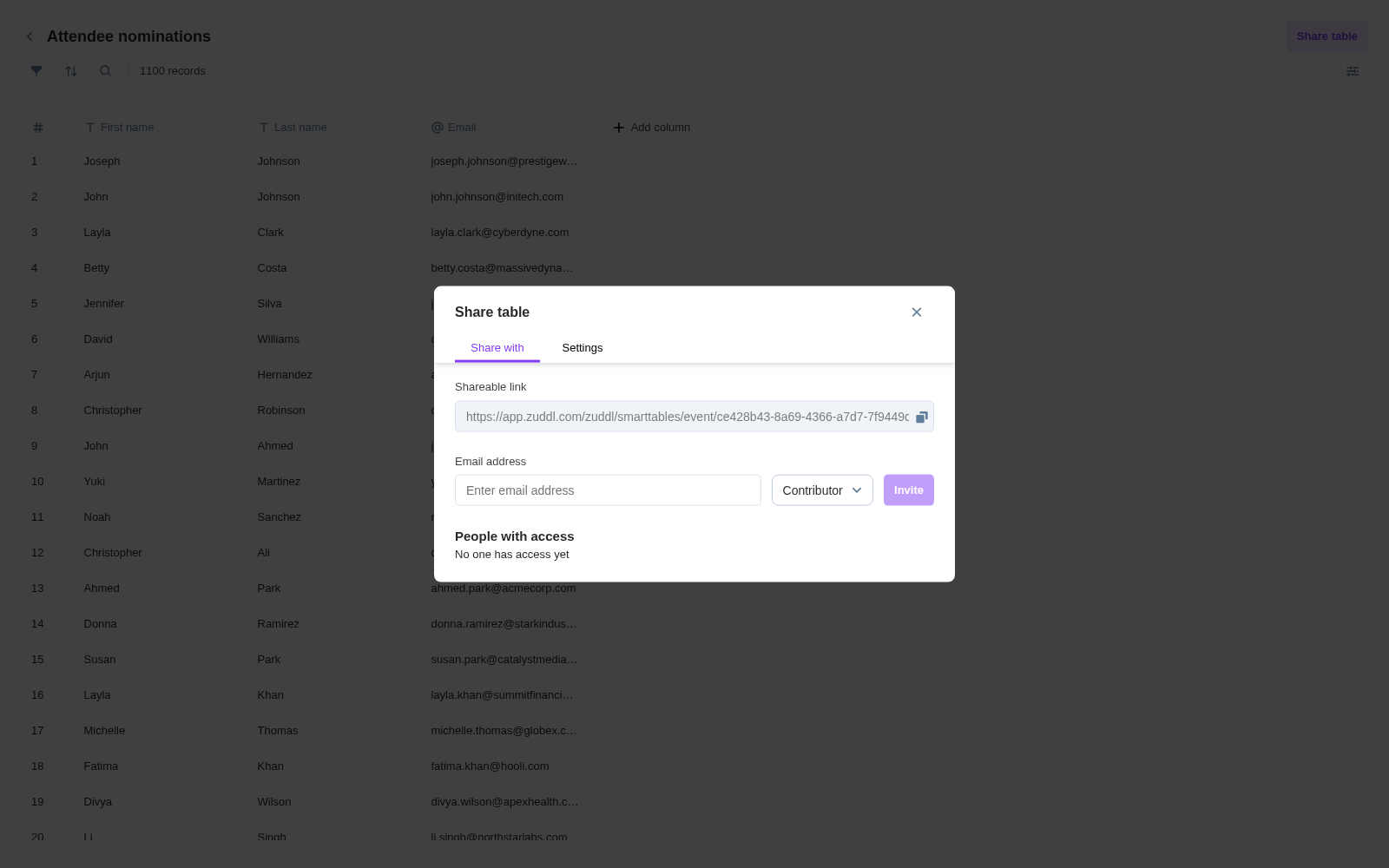
Open the Share panel, enter collaborator email addresses, and assign each person a role (Editor or Contributor). Adding a recipient sends them an invite email with an access link; removing a recipient revokes their access right away.
(Optional) Turn on the Allow collaborators to export CSV toggle in the Share panel if you want collaborators to be able to export the rows in their view.
What Happens Next
Collaborators do not need a Zuddl account. They log in with their email and a one-time passcode and only see the rows and columns you configured.
They receive a 6-digit code. The resend timer is 60 seconds, and the account locks for 30 minutes after 5 failed attempts.
One login gives a collaborator access to every table shared with that email for your org.
After logging in, a collaborator sees a list of the tables shared with them. When CSV export is enabled, collaborators see an [Export CSV] button that exports the rows in their view; when it is off, the button does not appear.
Filtering a view
You can filter a Smart Table using Equals, Contains, and Does not contain. Any filter you apply as the organizer is global and applies to everyone you share the view with. External collaborators can apply their own filters on top of that to work through their rows, and their filters only change their own view — they do not affect anyone else.
Sharing and roles
There are two collaborator roles. Both can work through the rows shared with them, but only an Editor can approve or reject requests. Neither role can change the structure of a table — only you, the organizer, can change columns, locks, and filters.
Action | Editor | Contributor |
|---|---|---|
View the columns shared with them | Yes | Yes |
Edit unlocked cells | Yes | Yes |
Change statuses | Yes | Yes |
Add new rows (only for nominations) | Yes | Yes |
Export CSV (if enabled) | Yes | Yes |
Approve or reject requests (where available) | Yes | No |
Change the table's columns, locks, or filters | No | No |
Notes
Each Smart Table is configured on its own, so the same column can be shown in one view and hidden in another.
A field's type cannot be changed after it is created. If you no longer want a field to appear in a view, hide it from that view rather than removing it.
CSV export is off by default. Turn it on with the Allow collaborators to export CSV toggle in the Share panel.
Need help with Smart Tables? Reach out to your Zuddl contact or our support team.