Connected fields in Smart Tables
Last updated: June 24, 2026
What This Does
Connected fields let you bring additional CRM and marketing-automation object fields (beyond the standard registration fields) into Zuddl and surface them as columns in a Smart Table. You map a source field to a Zuddl alias once at the org level, and that mapping is reused across all events and Smart Tables. Zuddl matches each attendee by email, reads the matching record from your CRM, and writes the mapped values into the Smart Table cells.
Note: Connected fields is currently in Beta. Mapping is org-wide (set it up once), the matching key is the attendee's email, and the setup flow is identical across Salesforce, Marketo, and HubSpot — only the supported objects differ.
Before You Begin
Admin access to Integrations at the global (org) level.
The relevant platform — Salesforce, Marketo, or HubSpot — connected as a global integration.
A Smart Table where you want the connected field to appear as a column.
Supported objects by platform
Connected fields are available for the following objects in each integrated platform:
Salesforce: Lead, Contact, Account, Opportunity
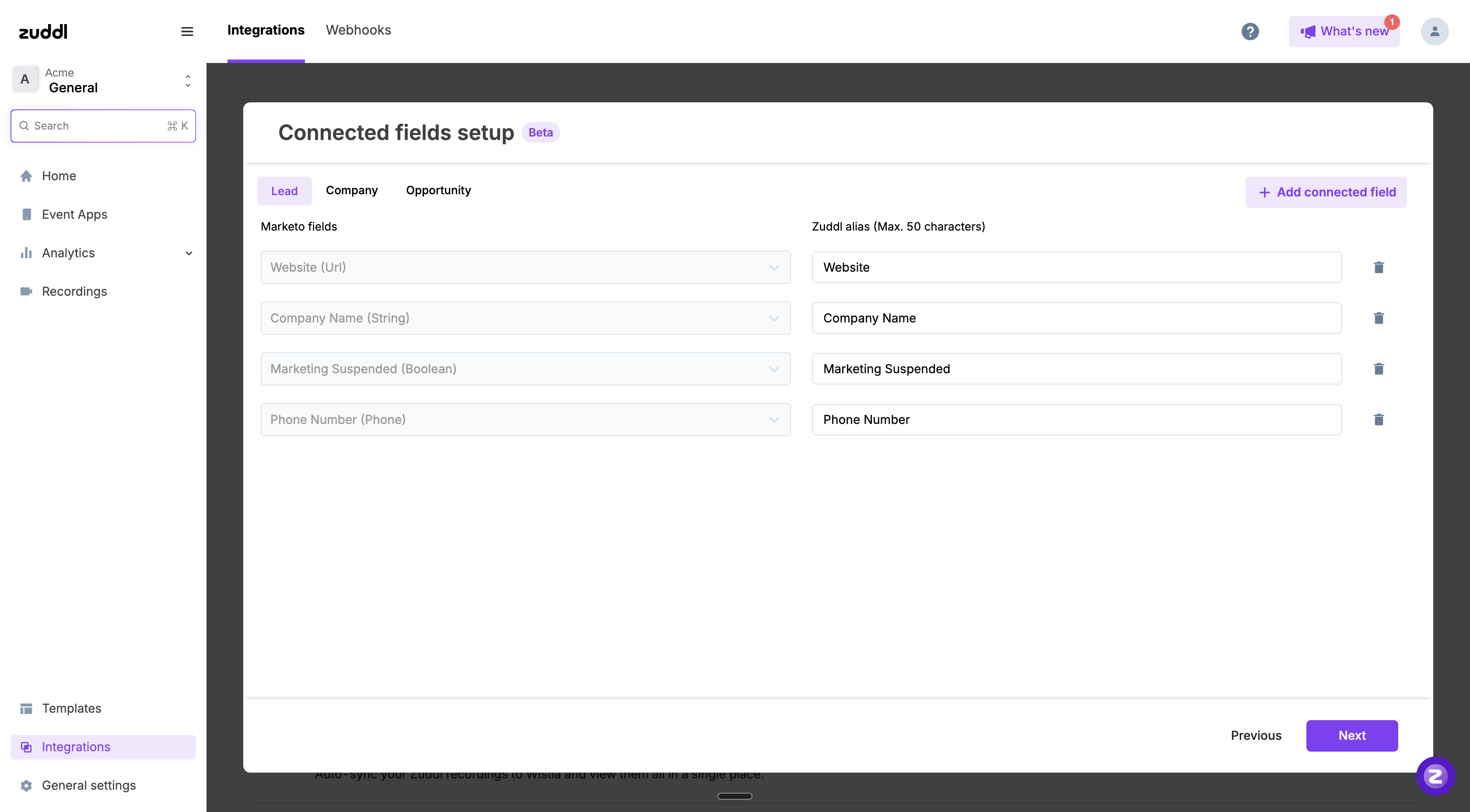
Marketo: Lead, Company, Opportunity
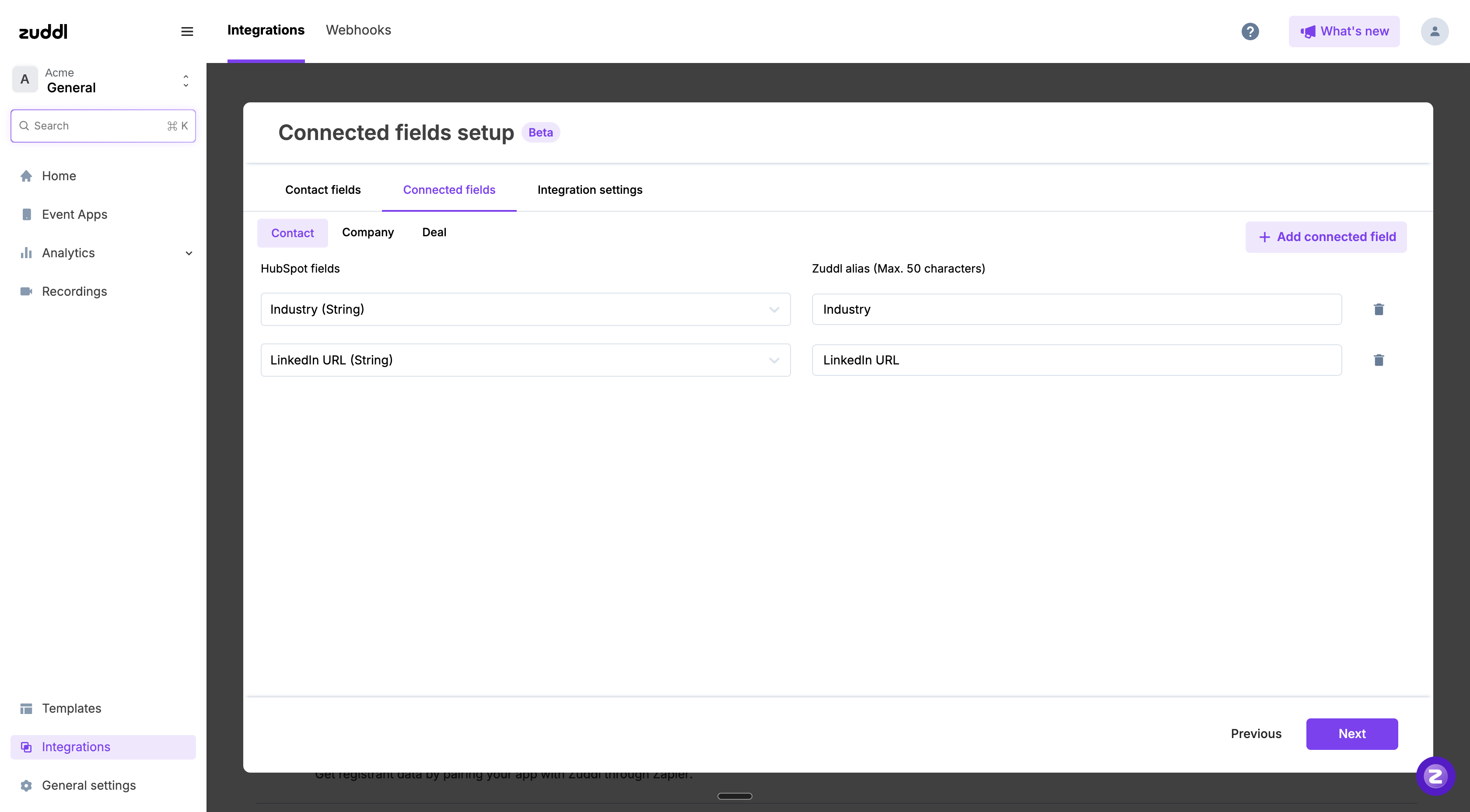
HubSpot: Contact, Company, Deal
Note: The available objects and fields depend on what each CRM exposes and on the connection's permissions.
How it works
The matching key is the attendee's email: Zuddl matches the email to the CRM object record, reads the mapped fields, and writes those values back into the Smart Table cells.
Mapping is org-wide and reused across all events and Smart Tables — set it up once.
Attendees with no matching CRM record simply have empty values.
Each sync is recorded as a Connected Fields Sync activity in the integration logs, so it is traceable and supports retries on failure.
Steps
Part 1 — Map connected fields in the global integration
This setup is the same across every supported integration. Open the platform you have connected and follow the same flow — only the object tabs and available fields differ per platform.
Go to Integrations at the global level and open your connected platform (Salesforce, Marketo, or HubSpot).
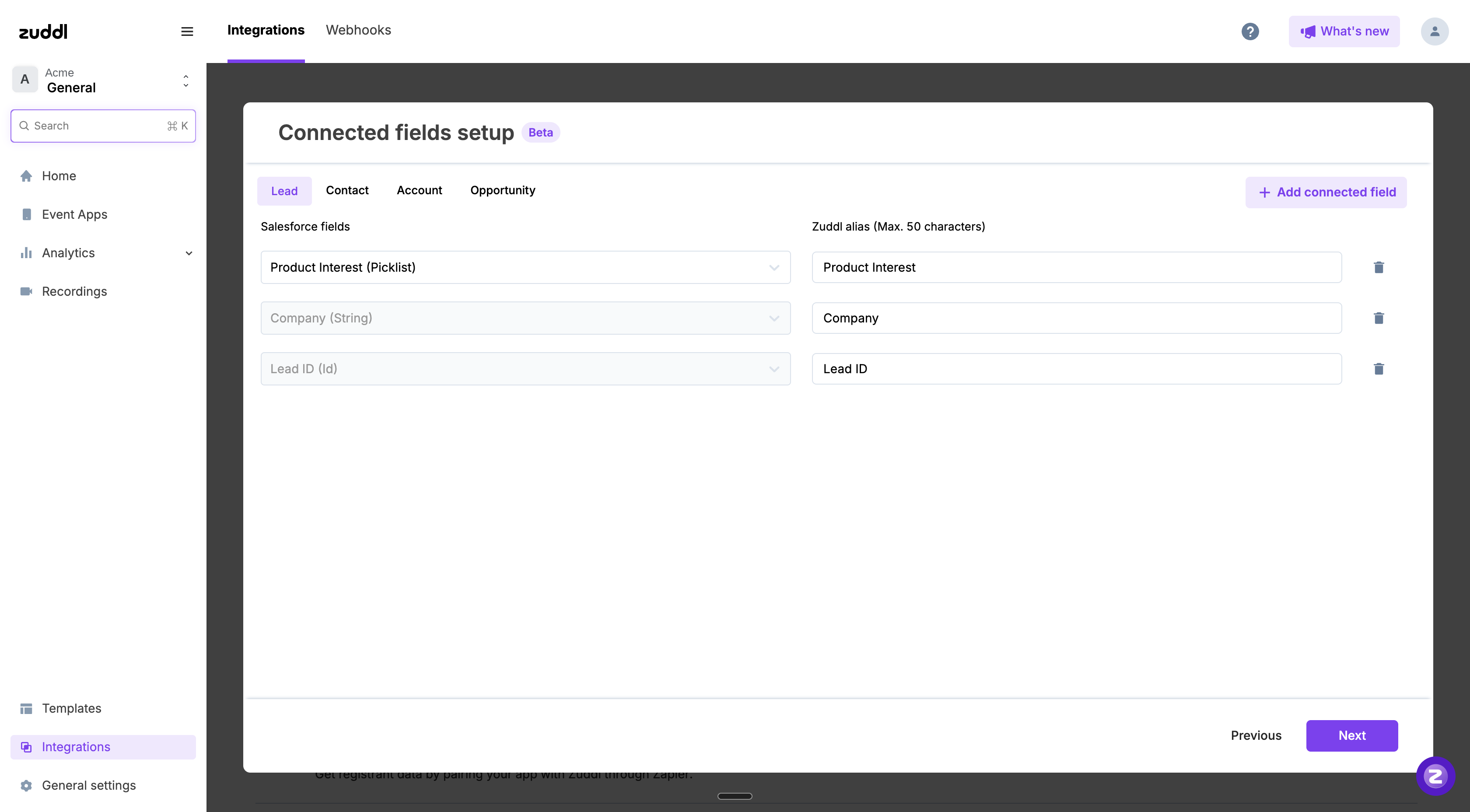
Open Connected fields setup.
Select the object tab you want to map a field for.
Click + Add connected field.
From the left dropdown, choose the source field. The dropdown lists live fields pulled from the CRM, shown as Label (DataType) — for example, Lead Score (Number).
In the Zuddl alias box, enter a display name (maximum 50 characters).
Repeat for any additional fields or objects, then click Next to save.
Note: A CRM field already mapped on a tab cannot be selected again on that same tab.
Editing rule: Existing mappings are locked — the CRM field of a saved mapping cannot be changed. To change it, remove the mapping and add a new one. You can always edit the Zuddl alias.
The screenshots below show the same setup screen in Salesforce, Marketo, and HubSpot — note the identical layout, with only the object tabs and field list differing per platform.
Part 2 — Add a connected field column to a Smart Table
Open the Smart Table you want to enrich and click + Add column.
Choose Integrations, then select the connected platform (for example, HubSpot field or Salesforce field).
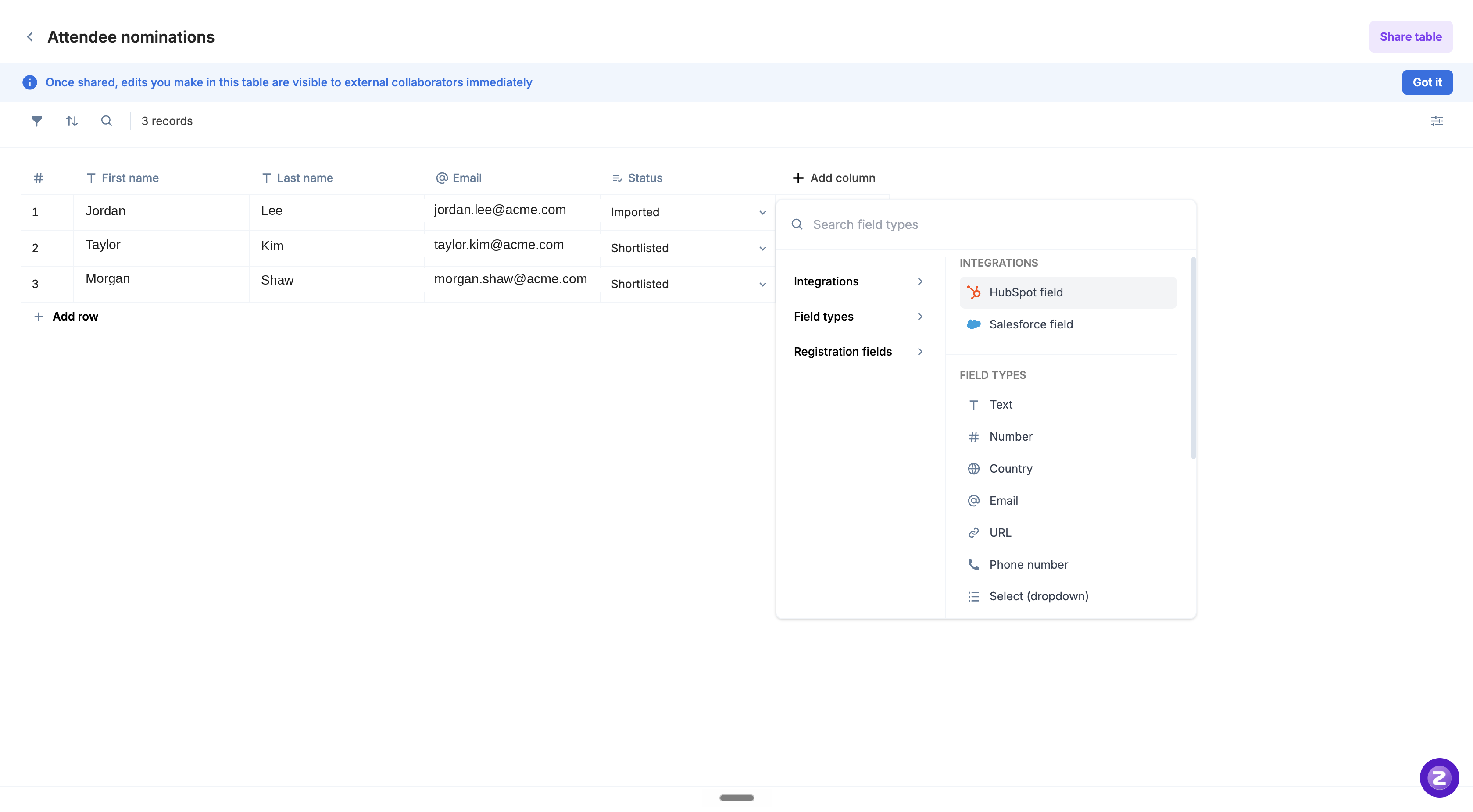
Pick a field from the dropdown of mapped connected fields for that object.
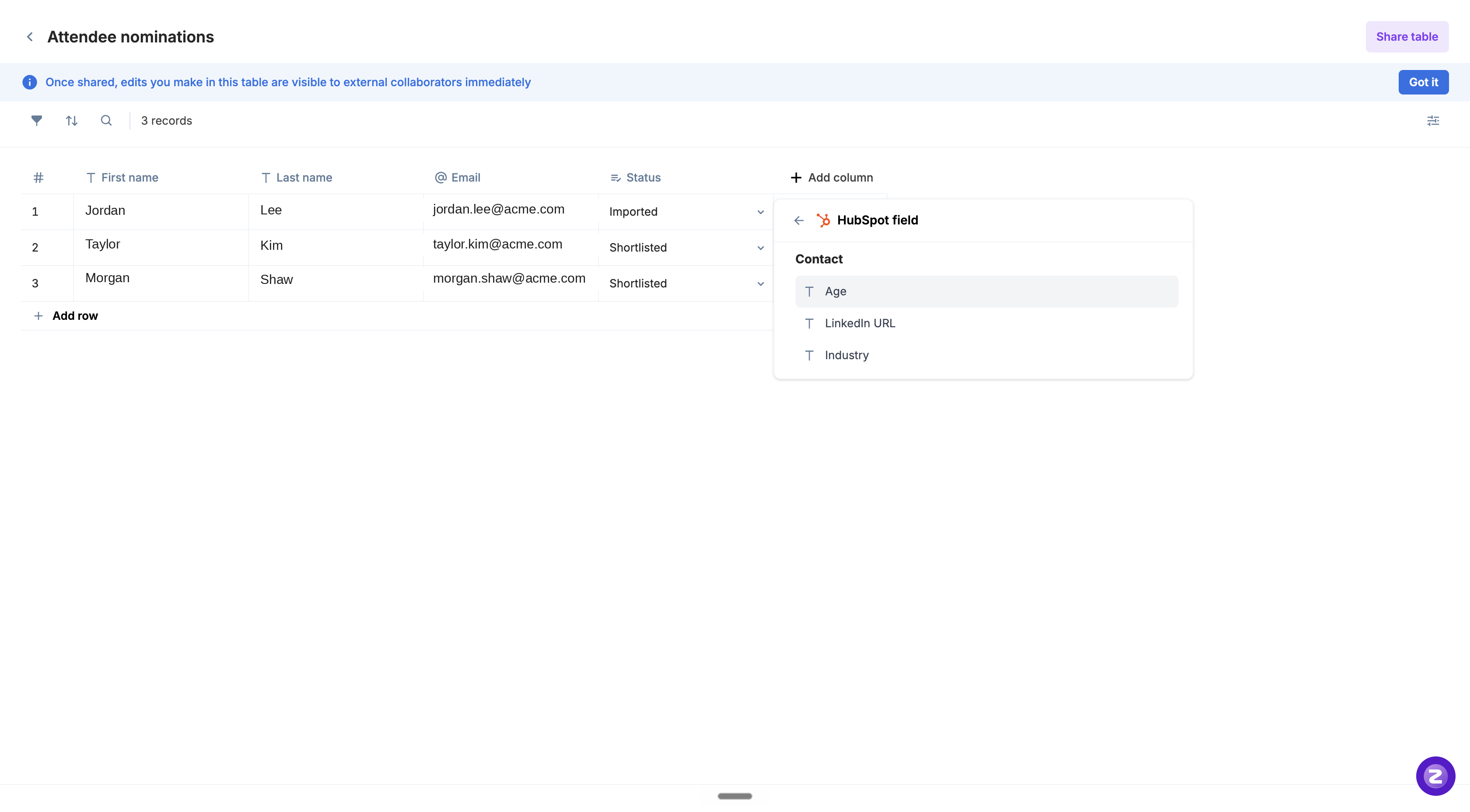
Confirm or edit the column name, then click Add column.
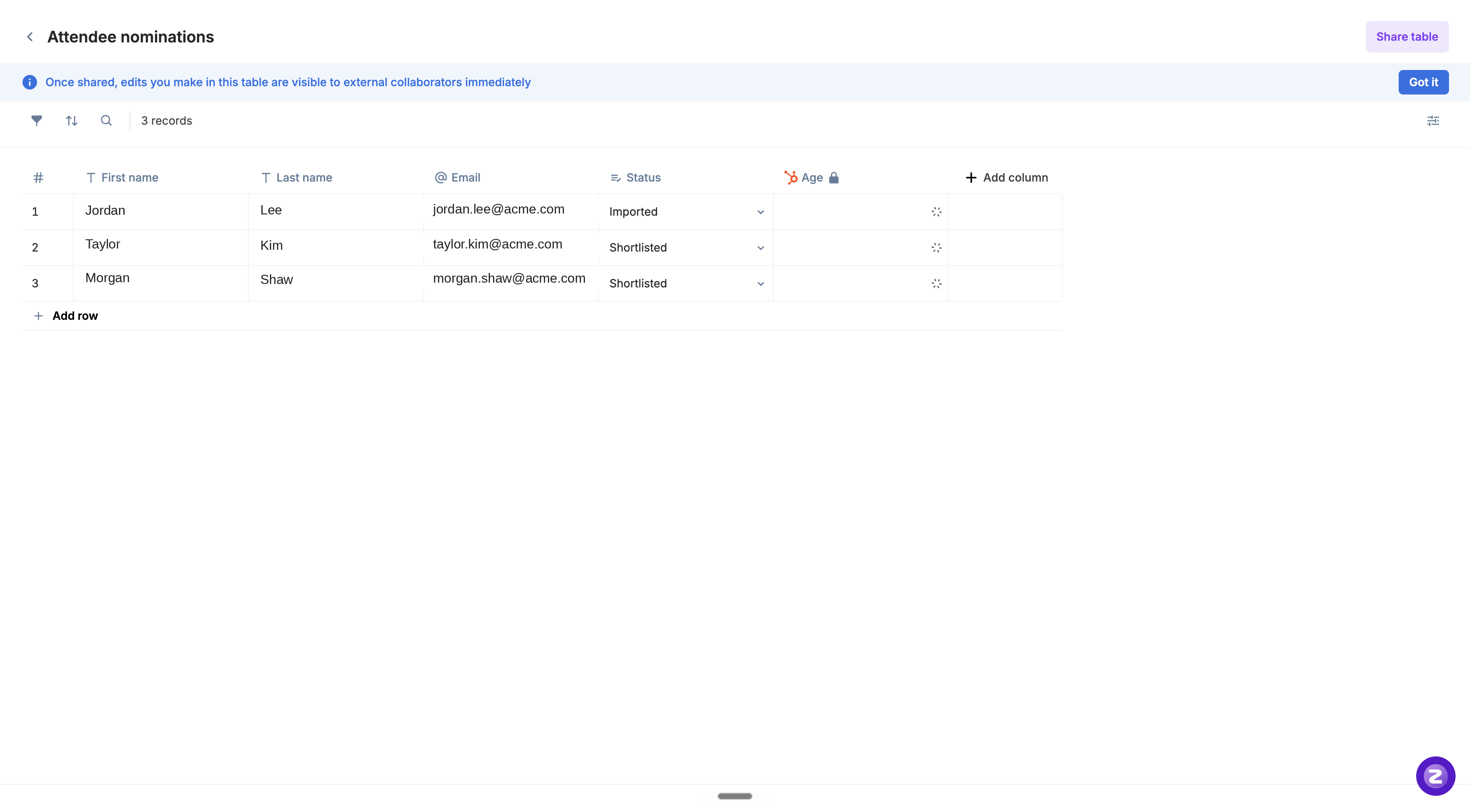
The column is added (shown with a lock icon) and the cells populate with the matched CRM values.
Part 3 — Keeping values in sync
Connected field values stay current through automatic background syncs, and you can also refresh them on demand from the Smart Table.
Automatic enrichment
When a new registration or nomination is added to the Smart Table (with an email present) and the org has connected fields enabled for a supported CRM, Zuddl auto-fetches that attendee's mapped CRM values in the background.
Skipped for events that ended more than 30 days ago.
Processed in batches with retries for resilience.
Manual sync (Smart Table)
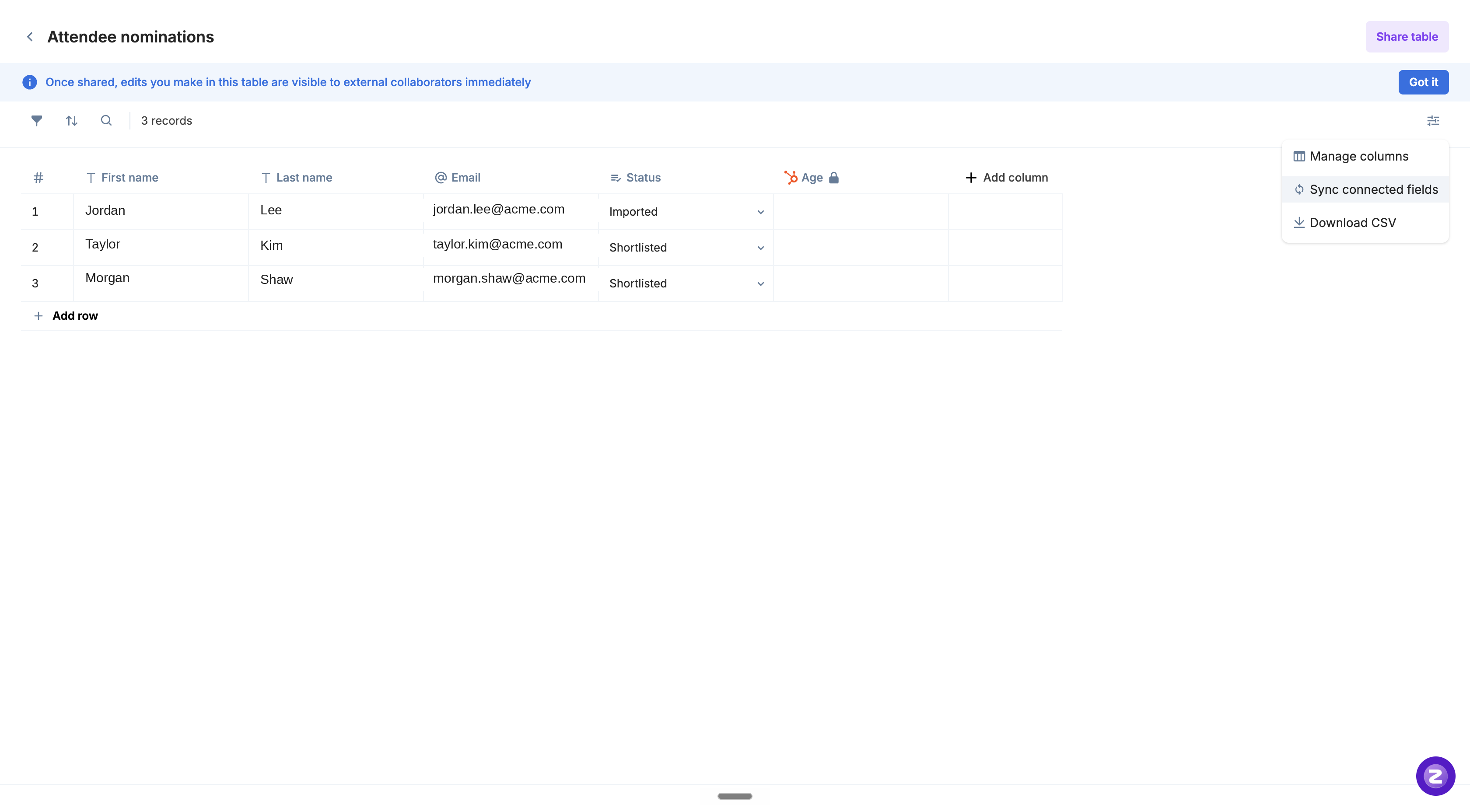
From the table's Manage columns menu, Sync connected fields appears when the table has connected-field columns.
It triggers an event-level refresh; a toast confirms “Sync started. Connected fields will update shortly.”
Rate-limited to roughly 15 minutes between syncs (“Next sync available in ~15 mins… to prevent API rate limits”).
A second concurrent sync for the same event is blocked while one is already in progress.
Handling CRM changes & deletions
Field deleted in CRM — the mapping is flagged; it stops syncing and shows a warning to remove it and add a new one.
Data type changed in CRM — flagged with a caution that existing Smart Table data may not match the new type; review the mapping.
Removing a mapping — a confirmation explains that Smart Tables using it stop syncing that field, already-fetched data remains (remove the column manually if unneeded), and the field can no longer be added as a column afterward.
What Happens Next
Each connected field column populates with the matching value pulled from the connected platform for that record. Updates from your CRM or marketing-automation platform flow into the column on the next automatic sync, or immediately after a manual sync.